
Revision history #
| Version | Date | Editor | Description of changes |
| 1.0 | 09.2025 | OD | Basic version |
Terms and Definitions #
Asset (Monitored Asset) — A monitored unit of the telematics service. Depending on the Solution, Assets may include vehicles (road, water, or rail transport), special-purpose machines, Diesel Generators, and other equipment equipped with a Telematics Terminal and Onboard Equipment. Several Assets (up to 4) connected to a single Terminal form a pool. Any Fleet user, including Operators and Viewers, can subscribe an Asset to Tasks, while only the Fleet Super Administrator or Administrator can unsubscribe it.
Asset SPN — A special SPN whose value results from automatic computation using standard SPNs from the S6 Database. Asset SPNs are used in Report Templates and Dashboard Templates for Groups only and always have a Source Address (SA) equal to 1000.
CAN (Controller Area Network) — A serial digital bus-type communication interface compliant with the international standard ISO 11898-1:2003. Various higher-level protocols can be used for data transmission over the CAN bus, such as j1939, CANopen, DeviceNet, CAN Kingdom, and others. The CAN bus is used to interconnect multiple electronic control units and sensors into a single network, commonly applied in the automotive industry and industrial automation systems.
Classes — Categories of Tasks defined by the volume of processed data. Determined by the total number of preset Keys, which corresponds to the Class name: 25, 50, 100, 200, 400, 800.
Complex Machine — A mobile or stationary Asset equipped with one or more engines, fuel tanks, and a large number of standard and additional sensors. The telematics specifics of Complex Machines are defined by the wide range of Onboard Equipment with various interfaces and the need to integrate both standard information buses and analog devices into a unified monitoring system. Monitoring Complex Machines requires processing and analyzing large volumes of data.
Control Center — A part of the UNUM IIoT Platform cloud software responsible for administering the Telematics Server, synchronizing standardized Parameter and Onboard Equipment Databases, and monitoring Industry Solution faults and licenses.
Counter — A cumulative numerical characteristic of a Parameter. A Counter is represented by a single number that can only increase over time. Examples of Counters include total fuel consumption, distance traveled, and engine hours.
Dashboard Template — A set of widgets used for Operational Monitoring of Asset/Group/Geofence performance. Linked to a specific Task and configured for corresponding Keys. Dashboard Templates can be exported/imported as files (*.tunum). Each user account displays only those Dashboard Templates that were created or imported by that specific user.
Dashboards — Software tools of the telematics service designed for Operational Monitoring of Parameters, Counters, Events, and faults of an Asset/Group/Geofence. Dashboard data are visualized using various widgets — gauges, charts, numeric indicators, lists, tables, and Maps. The data composition and widget set of a Dashboard are defined by its corresponding Dashboard Template, selected from the list of Tasks for the Asset / Group / Geofence.
Data Broker — A component of the UNUM IIoT Platform cloud software responsible for collecting, processing, and transferring data from Assets to the corresponding Industry Solutions. Brokers can also perform data management by sending relevant control commands to the Assets.
Dealer — An organizational unit positioned in the Solution hierarchy above a Fleet. It represents a legal entity responsible for implementing Telematics Systems in specific Fleets. Each Dealer has a unique name, one Super Administrator, and several Administrators.
Dealer Administrator — One or more users among the Dealer’s authorized personnel, granted the rights to Мanage Fleets, activate/deactivate Fleets, and generate billing reports.
Dealer Super Administrator — One of the Dealer Administrators whose standard rights are extended to include Management of all other Dealer Administrator accounts.
Diesel Generator (Genset) — An autonomous power source, either stationary or mobile, consisting of one or more internal combustion engines that generate mechanical energy and one or more alternators that convert mechanical energy into electrical energy.
Edge Computing — A data processing method that enables computation directly within the device at the data source. Data access under edge computing is provided via the Internet.
This approach ensures maximum performance, high bandwidth, zero latency, and instant response to acquired data.
Event — A relatively rare and abrupt change in Parameters. For example, a sharp increase in the fuel tank volume represents a “Refueling” Event. An Event may have one or more attributes.
For example, the “Refueling” Event includes the following attributes: “fuel volume at the start of refueling,” “fuel volume at the end of refueling,” “refueled volume,” etc. Each Event is always associated with a specific time and location.
Fleet — The initial organizational unit in the Industry Solution hierarchy, representing a collection of Complex Machines (for example, Diesel Generators). Each Fleet has a unique name, one Super Administrator, and several Administrators, Operators, and Viewers.
Fleet Administrator — One or more users among the Fleet’s authorized personnel, granted by the Fleet Super Administrator with the rights to Manage Operators, Viewers, Assets, Groups, Geofences, and Virtual SPNs. The Administrator can also Manage Report Templates and Dashboard Templates, including those belonging to Operators (using their access rights). The Administrator has access to billing reports, Fleet balance verification, Asset activation/deactivation, and Task subscription/unsubscription for Assets.
Fleet Operator (Operator) — One or more users among the Fleet’s authorized personnel, granted by the Fleet Administrators with the rights to Manage Report Templates and Dashboard Templates. The Operator can also subscribe Assets to Tasks. Operators may include any Fleet personnel (e.g., director, chief engineer, accountant, etc.).
Fleet Super Administrator — One of the Fleet Administrators whose standard rights are extended to include Management of all other Fleet Administrator accounts.
Functional Module (FM) — A hardware and software component embedded in a Unit that performs a specific group of functions. It has input/output PGNs and configuration PGNs.
Geofence — A virtual area defined on the Map, represented as either a circle or a polygon of arbitrary shape. It is used to monitor the presence of mobile Assets within the area, control Events, and track entry/exit times and total visit duration.
GNSS (Global Navigation Satellite System) — A system used to determine Asset locations by processing satellite signals. GNSS consists of space, ground, and user segments. The existing GNSS systems include GPS, GLONASS, Galileo, and BeiDou.
Group — Two or more Fleet Assets grouped by the user according to a specific attribute (for example, make, model, location, etc.).
Industry Solution (Solution) — A part of the UNUM IIoT Platform cloud software designed for telematics services (Operational Monitoring and Post-Analysis) of Complex Machines within a specific industry, considering its specific features (e.g., energy, road, water, and rail transport, agriculture, mining, etc.).
IoT Burger — A proprietary Technoton technology for creating smart sensors and complex real-time telematics IIoT devices with embedded analytics. The IoT Burger architecture includes a hardware-software core, a library of ready-to-use universal Functional Modules, and a database of standardized IoT parameters. The technology ensures that each device has several Measurement Channels with preinstalled analytical processing (filtering, linearization, temperature compensation) and controlled measurement accuracy. IoT Burger–based devices currently support data transmission over 2G/3G/LTE/NB-IoT/Wi-Fi/BLE networks.
ISOBUS – is a communication protocol used in farming machinery which complies with ISO 11783 standard and is based on SAE j1939. ISOBUS bus contains Parameters of farming machinery operation and besides “classical” Parameters (total fuel consumption, engine rpm, cooling agent temperature), it also includes Parameters of attached equipment (plough, sowing machine, mowing machine, cultivator, winnowing machine, spraying machine etc.). Over 7000 Parameters (SPN) of farming machinery operation complying with ISOBUS protocol are included into S6 Database.
Keys — Data units included in a Task. Each Key has defined attributes: SA (Source Address): network address of the data source; SPN / VSPN: monitored indicator of Asset/Group/Geofence performance (for example, a Parameter or Counter); SPEC: specifier used to clarify the indicator (if necessary). Each Key corresponds to a single monitored indicator received from a specific source (sensor, ECU, etc.) and processed within a Task. Preset Tasks are filled with Keys up to 90% of their capacity. At the Fleet level, additional SPNs/VSPNs can be added to the available free Keys within Tasks.
Management — The execution of actions related to creating, viewing, editing, and deleting (CRUD — Create, Read, Update, Delete) elements of an Industry Solution.
Map — A cartographic representation of the area used to display the location of Assets.
Measurement Channel — A structurally or functionally independent part of a measurement system that performs all stages of the measurement process — from receiving the measured quantity to obtaining the final measurement result.
MODBUS RTU — An industrial communication protocol based on serial data transmission (RS-485/RS-232 interface). It is used for master–slave information exchange between electronic devices in automation and monitoring systems.
Multiple Charts (Analytics) — A telematics service software tool designed for Post-Analysis of Asset / Group performance over a user-defined period. A Multiple Chart combines up to three graphs showing variations of raw (RAW) data for selected SPNs simultaneously. Multiple Charts can be generated from data stored on the Server for the following periods: 1 day / 1 week / 1 month / last 3 months / custom (within the last 3 months), and allow detailed viewing of data for any interval within the selected period.
NMEA 2000 is a high-level network protocol, which is defined by international standard of marine electronic equipment NMEA 2000 Standard. NMEA 2000 protocol allows to combine several units of marine equipment into a single network for data exchange. NMEA 2000 is based on data transfer protocol, which is used in CAN bus.
Node — Functional components of a Complex Machine (for example, in a Diesel Generator: the internal combustion engine, alternator, cooling/lubrication/fuel/power systems, etc.), as well as elements of installed Onboard Equipment (telematics gateway, fuel flow meters, etc.).
Onboard Equipment — Components of the Telematics System installed directly on the Asset. Onboard equipment can be either standard (factory-installed as part of the Asset’s original configuration) or additional (installed during Telematics System implementation).
Operational Data — Real-time information received from an Asset, including its location coordinates and key performance characteristics. Operational Data are updated on the Server as new information becomes available.
Operational Monitoring (Monitoring) — Remote real-time control of an Asset’s or Group’s location, Parameters, Counters, Events, and faults, displayed on a computer or mobile device.
Parameter — A time-varying characteristic of an Asset. Examples include frequency, current, voltage, generator power, fuel volume in the tank, hourly fuel consumption, coordinates, etc.
Parameter values are transmitted to the Server in real time and can be presented to the user as a chart, average, or instantaneous value.
PGN (Parameter Group Number) — A combined group of S6 Parameters with a shared name and identifier. Functional Modules (FM) within a Unit may contain input/output PGNs and configuration PGNs.
Post-Analysis — The analysis of Asset/Group performance performed by the user based on Reports or Multiple Charts over a selected period. The obtained data can be used in the operations of the Asset owner company — for accounting, management reporting, maintenance planning, and other purposes.
Report Template — A set of widgets used for Post-Analysis of Asset/Group/Geofence performance. Linked to a specific Task and configured for corresponding Keys. Report Templates can be exported/imported as files (*.runum). Each user account displays only those Report Templates that were created or imported by that specific user.
Reports (Analytical Reports) — A telematics service software tool used for Post-Analysis of Asset /Group/Geofence performance based on Parameters, Counters, Events, and faults over a user-selected period. Report data can be displayed using widgets such as lists, tables, and charts. The data composition and widget set in a Report are defined by the corresponding Report Template selected from the list of Tasks for the Asset / Group / Geofence. Reports can be generated from data stored on the Server for the following periods: 1 day / 1 week / 1 month / last 3 months / custom (within the last 3 months).
S6 — A wired technology for integrating smart sensors and other IoT devices into a single monitoring network for complex stationary and mobile Assets. S6 Technology is based on international SAE j1939 standards. Detailed information about S6 Technology is provided in the CAN j1939/S6 Telematics Interface User Manual
S7 — A wireless technology designed for collecting data from autonomous sensors in transportation and industrial Telematics Systems. S7 is recommended for use on mobile and stationary Assets where wiring is impossible or impractical. Communication is based on Bluetooth 4.X or 5.X Low Energy (BLE). S7 Technology ensures ultra-low power consumption and long autonomous operation of smart sensors and other IoT devices. At the application level, S7 Technology is fully compatible with wired S6 Technology.
SCADA (Supervisory Control and Data Acquisition) is a hardware-software system designed for developing and enabling real-time operation of systems for collecting, processing, displaying, and archiving information about a monitored or controlled asset. SCADA software can be written in any programming language, and the composition of on-board equipment may vary significantly depending on the monitored asset. The main function of SCADA is to provide informational support for technological processes within operational and dispatch control.
Solution Administrator — One or more users among the Solution’s authorized personnel, granted the rights to Manage Tasks, SPN ranges, and Dealers. The Administrator can generate billing reports, activate/deactivate Dealers, and reassign a Dealer to a Fleet.
Solution Super Administrator — One of the Solution Administrators whose standard rights are extended to include management of all other Solution Administrator accounts.
SPN (Suspect Parameter Number) — A unit of information in S6. Each SPN has a name, ID number, data length, data type, and numerical value. SPN types include Parameters, Counters, and Events. An SPN may also include a specifier — an additional field used to refine the value of a parameter (for example: Total Fuel Consumption / Idle Mode, Report Transmission / Roaming, Battery Voltage Limit / Minimum).
Tasks — Billable telematics service functions for Operational Monitoring and Post-Analysis of Complex Machine operation. Services are provided via subscription for a specific Asset / Group /Geofence and include access to Dashboard Templates and Report Templates with predefined Key sets according to the Task Class. The minimum subscription period is one month, with daily billing. Tasks are created and modified exclusively by the Solution owner — Technoton. Additional Tasks can be created as required, beyond the preset ones. Detailed information on preset Tasks is provided in the Task Catalog of the corresponding Industry Solution. An example of detailed Task information is presented in the document UNUM Genset Telematics Service. Task Catalog.
Telematics Platform (Platform) — A hardware and software environment for creating and centrally managing Industry Solutions. The Platform combines technologies, physical devices for data acquisition, transmission, and storage, and software tools for monitoring and analysis of Asset performance. The main components of the Telematics Platform include: Database of standardized equipment performance Parameters; Data transmission and Unit design technologies; Onboard and service equipment; Service software.
Telematics Server (Server) — A combination of computing hardware and software designed for processing and storing Operational Data and for generating and transmitting Analytical Reports via the Internet according to user requests.
Telematics System — An integrated hardware and software solution for Operational Monitoring and Post-Analysis of Asset performance. The Telematics System includes Onboard Equipment, a Server, communication channels, office equipment, software, and the telematics service itself.
Telematics Terminal (Terminal) — A mandatory element of the Telematics System that performs the following functions: Reading and processing signals from standard and additional equipment installed on the Asset; Determining location via GNSS satellites; Transmitting data to the Server.
Terminal Profile — A set of Terminal settings presented as a file (for example, for the CANUp 27 Genset telematics gateway — *.prf). The Profile file is written to the Terminal memory using the corresponding service software.
Unit — A component of additional Onboard Equipment installed on the Asset, operating under S6 or S7 Technology.
UNUM Genset — A telematics service based on the UNUM IIoT Platform designed for Operational Monitoring and Post-Analysis of Diesel Generator performance.
UNUM IIoT Platform — An Industrial Internet of Things (IIoT) platform designed for developing and managing telematics services for Complex Machines across various industries (energy, road, water, and rail transport, agriculture, mining, etc.). The Platform includes a comprehensive toolkit: a database of standardized Parameters, data transmission and Unit design technologies, IIoT Onboard Equipment, cloud-based software, service equipment, and tools.
Viewer — An Operator whose standard access rights are limited to subscribing Assets/Groups/Geofences to Tasks and performing Operational Monitoring and Post-Analysis of Asset/Group/Geofence performance.
Virtual SPN (VSPN) — A special Parameter whose value results from automatic calculation operations using predefined SPNs (up to 3), calibration tables (up to 3), functions, and operators (mathematical, logical, comparative, or conditional). VSPNs can be selected alongside standard SPNs from the S6 Database for inclusion in Report Templates or Dashboard Templates.
Introduction #
The recommendations and guidelines provided in this User Manual apply to Industry Solutions based on the UNUM IIoT Industrial Internet of Things Platform (hereinafter referred to as UNUM IIoT Platform), developed by Technoton.
This document is intended for Solution Super Administrators and Solution Administrators and provides information on the purpose, advantages, operation, user interface, and management of the UNUM IIoT Platform cloud software.
 |
UNUM IIoT is a hardware-software Platform for the Industrial Internet of Things (IIoT), designed for building and operating Industry-Specific Solutions. The Platform includes tools such as cloud software, a database of standardized Indicators, data transmission and device-design technologies, a universal IIoT On-board equipment set, and service tools (hardware and software). |
Key Features of UNUM IIoT Platform:
1) Universality — single ecosystem and unified data standard
-
One platform for all machines and industries: Supports different types of machinery regardless of brand. Applicable in any sector — energy, transport, oil & gas, industry, utilities, and more.
-
Universal equipment set: A complete kit from a single manufacturer — Technoton. Common protocols for wired and wireless communication, unified cabling system, and the CAN j1939/S6 telematics interface ensure 100 % compatibility and easy installation. Smart sensors and IIoT devices perform internal data exchange and real-time operation using the Edge Computing method.
-
Unified data representation: A common format based on a Database of over 10 000 standardized machine Indicators. This single “data language” ensures clear and fast interaction between on-board equipment, Server, cloud software, developers, technical support, integrators, and end-users. An open API simplifies integration with ERP and BI systems, as well as data processing and analytics using AI and ML.
-
Interface and protocol conversion: Integration of standard and additional equipment with various interfaces and protocols — CAN (SAE j1939/71, FMS), ISOBUS, j1708 (SAE j1587), NMEA 2000, RS-485/232 (Modbus RTU, ASCII).
-
Event-based data transmission model: Data is recorded with high resolution (from 0.1 s) and sent to the Server every 10 s and/or on Event, preventing information loss and enabling instant response to critical changes (parameter spikes, potential failures).
2) Easy deployment, cost efficiency and flexible licensing
-
Quick start “out of the box”: No need for programmers or developers. A system administrator can deploy and prepare the Server, and an operator can configure Dashboards and Reports via a web browser.
-
Simple scaling and replication: Minimal labor for deployment on similar Assets, with configuration import available. Object complexity has little effect on setup volume.
-
One-time license for base Server software configuration and Assets — no recurring payments required.
-
Reduced CAPEX / OPEX: Industry-Specific Solutions can be implemented within 1–2 months. The initial cost is significantly lower than for typical SCADA-system development.
3) Functional depth and control
-
Metrologically accurate fuel control: Uses precision measuring instruments — DFM flow meters and DUT-E level sensors widely recognized in the telematics market. Monitors flow in pipelines and tank levels, automatically detects refueling and draining, prevents theft and leaks (fuel savings up to 50 %).
-
Subsystem monitoring: Real-time tracking of Indicators for the engine, fuel system, tanks, electrical equipment, hydraulics, and other units.
-
Remote diagnostics and control: Logging of Events and error codes (DTC), remote start/stop and mode switching, maintenance scheduling and tracking.
4) Operational convenience
-
Modular architecture: Add new elements and functions without complex programming or costly technical modifications. The resulting control system, in terms of data scope, accuracy, diagnostics, and management, rivals SCADA capabilities.
-
24/7 Access: Round-the-clock online access to cloud data storage from anywhere in the world via PC or mobile browser — unlike most offline-oriented SCADA systems.
 |
ATTENTION: When working with Industry Solutions, it is essential to strictly follow the recommendations provided in this User Guide. |
The user interface of the Industry Solution cloud software is accessible via a web browser on a personal computer (PC) — no additional software installation is required.
To ensure the correct operation of the Industry Solutions, management and operational access rights should be granted only to certified users who have completed official Technoton training.
|
ATTENTION: Technoton reserves the right to modify the interface design and functional capabilities of the Industry Solutions without prior notice to the user, provided such changes do not degrade the product’s performance or usability. |
1 General Provisions #
1.1 Purpose, Application Areas, Operating Principle, and Advantages of the Industry Solution User Interface #
Purpose:
The Industry Solutions of the UNUM IIoT Platform are designed to provide telematics services for Complex Machines across specific industrial sectors.
Application Areas:
- Telematics systems for:
– land, water, and railway transport, as well as logistics operations;
– Diesel Generator power plants, industrial, heating, and boiler equipment;
– special-purpose and technological machinery used in the oil & gas and mining industries;
– municipal and industrial resource metering systems (water, gas, electricity, heat). - Information and statistical systems that process large datasets on machinery operation presented in a unified analytical format, suitable for processing using Machine Learning technologies.
- Intelligent IIoT control systems for industrial and technological processes.
Operating Principle:
The Industry Solution are part of the UNUM IIoT Platform cloud software (see Figure 1).
User interaction with Industry Solution websites is performed via the Internet, operating 24/7 and accessible from anywhere in the world.
UNUM IIoT Platform Data Brokers collect, process, and transmit data in real time using the UNUM MQTT protocol, transferring information from monitored Assets to the cloud storage of the corresponding Industry Solutions. When required, the Data Brokers can also perform data control by sending relevant commands to the Assets.
The UNUM IIoT Platform Control Center synchronizes, via the HTTPS protocol, two original databases — S6 original DB and OE original DB (Databases of standardized Equipment Performance Parameters and Onboard Equipment, respectively) — with their copies for all Industry Solutions (S6 copy DB and OE copy DB).
Additionally, the Control Center performs diagnostics of Industry Solutions and license validity control for Solution owners.
Users of the UNUM IIoT Platform Industry Solution websites can, through a web browser and in accordance with their access rights, perform administration, resource Management, Operational Monitoring, Post-Analysis, and other related operations.

Figure 1 — Functional Diagram of Industry Solutions on the UNUM IIoT Platform
Advantages of the User Interface
- Access anytime, anywhere: Users of an Industry Solution have 24/7 access to monitoring, performance analysis, and remote control services for their Assets through a web browser on any computer with an Internet connection.
- Intuitive and user-friendly design: A structured and clear menu, easy navigation, and quick access to tools and a Database of over 10,000 standardized Equipment Parameters ensure comfortable and efficient use.
- Flexible customization: Branding and personalization of the interface according to individual user requirements, as well as the use of specific Tasks for monitoring and data analysis, enhance operational convenience.
- Real-time data visualization: Online monitoring allows users to respond instantly to rapid changes in Asset performance and detect potential issues early. Timely proactive maintenance increases reliability, efficiency, environmental compliance, and operational uptime by up to 50%.
- Automatic updates: Cloud software updates are performed automatically without user intervention, ensuring access to the latest interface features and security policy improvements.
- Scalability: The cloud architecture is easily scalable, allowing additional resources to be added seamlessly as business needs expand — without additional capital investment.
- Integration with third-party software: Supports integration with external applications, mobile apps, management, and reporting systems into a unified ecosystem, where all data are collected and processed in a single center.
- Collaboration and shared data access: Individual user permissions and access levels can be configured. The interface allows simultaneous access for multiple users, simplifying machinery management and optimizing teamwork coordination.
- Monitoring, analytics, and reporting: Powerful, universal tools for monitoring and analyzing the performance of Complex Machines of any global brand provide management and staff with accurate and reliable information, enabling data-driven and effective decision-making.
- Event and fault notifications: Customizable notifications about Events and faults of Assets or Onboard Equipment allow for quick responses to emerging issues, preventing unexpected failures and downtime.
- Data security: The cloud software ensures a high level of data protection, including encryption, multi-factor authentication, and backup systems, minimizing risks of data loss or unauthorized access.
- Compatibility with browsers and devices: The interface is compatible with all major web browsers and automatically adapts to various devices — desktop computers, laptops, tablets, and smartphones — ensuring universal access to monitoring data.
1.2 User access rights #
Each user of an Industry Solution based on the UNUM IIoT Platform is assigned a unique login and password to access their personal account. The user account defines specific access rights, which determine the elements of the user interface and the resources of the Industry Solution that can be viewed and Managed (see Table 1).
Table 1 — Users of the UNUM IIoT Platform Industry Solution and Their Access Rights
| Level | User | Access Rights |
| “Solution” | Solution Super Administrator |
|
| Solution Administrator | ||
| “Dealer” | Dealer Super Administrator |
|
| Dealer Administrator |
|
|
| “Fleet” | Fleet Super Administrator |
|
| Fleet Administrator |
|
|
| Operator |
|
|
| Viewer |
|
|
IMPORTANT: The account of a specific user within the Industry Solution contains all elements created by that user. When the user account is deleted, all elements created by that user are also deleted. |
1.3 Requirements to user workspace #
For proper operation of the UNUM IIoT Platform Industry Solution website, a dedicated PC (desktop or laptop) with Internet access is required. The system must meet the following specifications:
Minimum system requirements:
-
Operating system: Win 10 (X32/X64) / Win 11 (X32/X64) / OS X / MacOS / Linux
-
Processor: 2 cores, 2.0 GHz
-
RAM: 4 GB
-
Hard drive: 128 GB
-
Display resolution: 1920×1080
Recommended system requirements:
-
Operating system: Win 10 (X32/X64) / Win 11 (X32/X64) / OS X / Linux
-
Processor: 4 cores, 2.5 GHz or higher
-
RAM: 8 GB or more
-
Hard drive: 128 GB or more
-
Display resolution: 1920×1080 (1920×1200)
The PC must have the latest version of one of the following Internet browsers installed:
-
Google Chrome
-
Mozilla Firefox
-
Opera
-
Safari
|
RECOMMENDATION: Antivirus software installed on the PC may slow down browser performance and data retrieval from the Server. If the PC becomes sluggish while working with the Industry Solution website, add its URL to the antivirus exclusion list or temporarily disable network monitoring in the antivirus settings during operation. |
1.4 Quantitative Limits for Resources #
Table 2 — Quantitative Limits for Resources of the Industry Solution UNUM IIoT Platform
| Resource | Maximum Quantity, pcs. | Ownership |
| Fleets | 300 | one Industry Solution |
| Assets | 10,000 | one Industry Solution (maximum Server configuration*) |
| 3,000 | one Industry Solution (optimal Server configuration*) |
|
| 1,000 | one Industry Solution (minimum Server configuration*) |
|
| 300 | one Fleet | |
| 20 | one Group | |
| Groups | 50 | one Fleet |
| Geofences | 50 | one Fleet |
| Tasks | 100 | one Industry Solution |
| Dashboards | 15 | one Task |
| Reports | 15 | one Task |
| * See Annex A. | ||
2 Configuration Procedure for the Industry Solution #
Settings for the “Solution” Level
1) The Solution Super Administrator deploys a local Server according to the requirements of the Industry Solution owner, installs the operating system and the cloud software (see Annex A).
2) The Solution Super Administrator creates the required number of Solution Administrator accounts (see 3.3.1).
3) The Solution Super Administrator / Solution Administrators create Dealers (see 3.4.1).
4) The Solution Super Administrator / Solution Administrators create Tasks that define the Dashboards, Analytical Reports, and Geofences to be distributed within the Industry Solution (see 3.9.1).
5) The Solution Super Administrator / Solution Administrators create the required Dashboard Templates (see 3.9.3) and Report Templates (see 3.9.4) for the Tasks.
6) The Solution Super Administrator / Solution Administrators set the required value ranges for SPNs included in the Task sets, if necessary (see 3.10).
7) The Solution Super Administrator / Solution Administrators define the subscription cost for specific Tasks for a single Asset / Group / Geofence (see 3.5).
8) The Solution Super Administrator, if required, customizes the Industry Solution website design according to the owner’s brand book (see 3.12).
Settings for the “Dealer” Level
1) The Dealer Super Administrator creates the required number of Dealer Administrator accounts.
2) The Dealer Super Administrator / Dealer Administrators create Fleets.
3) The Dealer Super Administrator / Dealer Administrators, if necessary, customize the Dealer and Fleet website design in accordance with the owners’ brand book.
|
ATTENTION: Detailed information on the configuration procedure of the Industry Solution at the “Dealer” level can be found in the document “Dealer Administrator Guide”. |
Settings for the “Fleet” Level
1) The Fleet Super Administrator creates the required number of Fleet Administrator accounts.
2) The Fleet Super Administrator / Fleet Administrators create Operator and Viewer accounts.
3) The Fleet Super Administrator / Fleet Administrators create Assets, Groups, and Geofences.
4) The Fleet Super Administrator / Fleet Administrators grant Operators and Viewers access to the required Assets.
5) The Fleet Super Administrator / Fleet Administrators / Operators / Viewers subscribe Assets, Groups, and Geofences to the required Tasks.
6) The Fleet Super Administrator / Fleet Administrators create the necessary Virtual SPNs.
7) The Fleet Super Administrator / Fleet Administrators / Operators create the required Dashboard Templates and Report Templates.
|
ATTENTION: Detailed information on the configuration procedure of the Industry Solution at the “Fleet” level can be found using the example of the UNUM Genset Solution in the document “UNUM Genset Telematics Service. ‘Fleet’. User Guide”. |
3 Working with the Industry Solution Website #
3.1 User authorization #
Enter the URL of the Industry Solution website in the browser’s address bar.
For authorization, enter the user login (Login field) and password (Password field) received at the time your account was created and press  button (see figure 2).
|
IMPORTANT: User login must be unique. The user login and password chosen may contain: capital and lower-case Latin letters from A to Z and from a to z, digits from 0 to 9, _ underscore character. |
Upon first login, the user must review the Terms of Use and Privacy Policy for the telematics service, which are provided in the corresponding tabs, and confirm acceptance by checking the appropriate boxes and clicking the  button.
The login page also displays important notifications from the UNUM IIoT Platform administration — for example, information about scheduled maintenance periods or possible temporary interruptions in connection with the Server.

Figure 2 — Example of the user login window for accessing an account on the Industry Solution website*
* Here and below, UNUM Genset — the Industry Solution for Diesel Generators — is used as an example.
3.2 Main Window Interface #
After user authorization, the Main Window of the Industry Solution website* (the  Home tab) opens, where user settings can be configured (see Figure 3).
a) Home page (Home tab)

b) Account menu
Figure 3 — Example of the Main Window of the Industry Solution website
* An example of the Main Window interface of the Industry Solution website and its subsequent description are provided for a user with the Solution Super Administrator access level.
The Main Window of the Industry Solution website contains the following working areas:
1) Settings Area — displays the settings and resource data of the Industry Solution corresponding to the tab of the Main Menu that is currently open.
2) Account Menu — contains the account information of the user who is currently logged into the website.
If necessary, by clicking the avatar icon (default  ), the user can open the menu window and modify previously specified account details:
- Avatar image — in the Avatar area, click the icon
 and upload an image from your computer.
 - User personal information (e.g., first or last name) — Personal information area, Name field.
- Email address for recovering the username and/or password in case of loss — Contact information area, Email field.
- Login credentials (username and password) for account authorization — UNUM access area, Login and Password fields, respectively.
|
IMPORTANT: User login must be unique. The user login and password chosen may contain: capital and lower-case Latin letters from A to Z and from a to z, digits from 0 to 9, _ underscore character. |
To save the changes made to the user account, click button  .
.
To log out of the account, click button  .
.
If necessary, the user can also review the previously accepted terms of the telematics service by following the Terms of Use and Privacy Policy links located at the bottom of the menu window.
3) Main menu contains the following tabs:
 |
Home — the homepage that opens immediately after user authorization and contains general information about the Industry Solution: |
- Name (field Solution name).
- Current versions of the cloud software interfaces and standardized Parameters Databases (DB).
- Current number of created resources — Dealers (column Dealers), Fleets (column Fleets), and Assets (column Assets).
- Field
 used to search Dealers by name.
 - A table listing all Dealers, with the following columns:
– Unique identifier (ID column);
– Name (Dealer name column);
– Status (activated) or
  (deactivated)*;
– Number of Fleets (Fleets column);
– Number of Assets (Assets column).
* Implementation in progress.
 |
Admins — Management of Solution Administrator accounts (see 3.3). |
 |
Dealers — Management of Dealers (see 3.4). |
 |
Billing — Setting the monthly subscription cost for specific Tasks assigned to an Asset / Group / Geofence (see 3.5) and generating detailed billing reports by Tasks / Dealers / Fleets (see 3.6). |
 |
Fleets — Reassigning a Dealer to a Fleet (see 3.7). |
 |
Assets — Reassigning a Fleet to an Asset (see 3.8). |
 |
Tasks — Managing Tasks, creating general Report Templates / Dashboard Templates for the entire Industry Solution, and linking widgets to Dashboard/Report Templates for specific Tasks (see 3.9). |
 |
SPN range — Managing SPN value ranges included in the preset Key sets for Tasks (see 3.10). |
 |
Diagnostics — Monitoring Server self-diagnostic data (see 3.11). |
 |
Settings — Customizing the appearance of the Industry Solution website according to the owner’s brand book, publishing Terms of Use and user notifications (see 3.12). |
 |
Changelog — Checking the current Frontend and Backend software versions and updates (see 3.13). |
|
RECOMMENDATION: For full-screen display of any opened tab in the browser of the Main window, press F11 key on the PC keyboard. |
3.3 Managing Solution Administrator Accounts #
|
ATTENTION: The rights to Manage Solution Administrator accounts are available only to the Solution Super Administrator. |
3.3.1 Creating an Administrator Account #
1) In the Main Menu, open the Admins tab to access the window for managing Solution Administrator accounts (see Figure 4).
2) In the opened Solution Administrators window, click button  to create a new Administrator account and fill in all fields marked with an asterisk (*) in the settings area:
- In the Personal information section
Name* — personal details of the Solution Administrator (e.g., first or last name).
- In the Contact information section
E–mail* — the email address used for recovering the username and/or password in case of loss.
- In the UNUM access section
Login* — the username for signing in to the Industry Solution website.
Password* — the password for signing in to the Industry Solution website.
|
IMPORTANT: 1) The selected Solution Administrator login must be unique. The login and password may include uppercase and lowercase Latin letters (A–Z, a–z), digits (0–9), and the underscore symbol (_). The password must contain at least five characters. 2) The chosen login and password will later be used by the Solution Administrator to sign in to both the web version of the Industry Solution website and the corresponding mobile application (if available). |
3) To save the entered data, click button  . After the notification confirming successful user creation, the new Administrator’s name will appear in the list of Solution Administrator accounts, and a unique identification number (ID) will be automatically assigned to them within the UNUM IIoT Platform.

Figure 4 — Example of creating a new Solution Administrator account
3.3.2 Editing a Solution Administrator Account #
1) In the Main Menu, open the Admins tab to access the window for managing Solution Administrator accounts (see Figure 5).
2) In the opened Solution Administrators window, click the row of the user whose account data you want to edit in the list of Solution Administrators. Then, in the settings area, you can modify the previously entered account details in the required fields: Name*, E–mail*, Login* and Password*.
3) If necessary, by clicking button  at the bottom of the Management window, you can access the Industry Solution website under the edited Administrator’s account without authorization and perform the required actions within the corresponding access rights (see Table 1).
4) To save the changes made to the Administrator’s account data, click button .

Figure 5 — Example of editing a Solution Administrator account
3.3.3 Deleting an Administrator Account #
1) In the Main Menu, open the Admins tab to access the window for managing Solution Administrator accounts (see Figure 6).
2) In the Solution Administrators window, select the row of the user whose account you want to delete, and then click button  in the settings area.
3) In the confirmation dialog box, click button  to confirm the deletion of the Administrator account. If deletion is not required, click button
 .
.

Figure 6 — Example of deleting a Solution Administrator account
|
WARNING: When a Solution Administrator account is deleted, all resources, elements, and settings created within that account are permanently removed and cannot be recovered. |
3.4 Managing Dealers #
|
ATTENTION: Dealer Management rights within the Industry Solution are available only to the Solution Super Administrator and Solution Administrators. |
3.4.1 Creating a Dealer and Dealer Super Administrator #
1) In the Main menu, open the Dealers tab to access the Dealer Management window (see Figure 7).
2) In the Dealers window that opens, click button  to create a new Dealer. In the Settings area, fill in all required fields marked with an asterisk (*):
- In the Personal information section
– Dealer name* — enter the Dealer’s name (for example, the name of the respective company).
– Comment — optionally, provide an explanatory note or additional information.
- In the Contact information section
– Super Admin Name* — enter the personal details of the Dealer’s Super Administrator (for example, first and/or last name).
– Super Admin Email — optionally, specify the email address to be used for recovering the username and/or password in case of loss.
- In the UNUM access section
– Super Admin Login* — enter the username for authorization when signing in to the Industry Solution website.
– Super Admin Password* — enter the password for authorization when signing in to the Industry Solution website.
|
IMPORTANT: 1) The selected Dealer Super Administrator login must be unique. Both the login and password may include uppercase and lowercase Latin letters (A–Z, a–z), digits (0–9), and the underscore symbol (_). The password must contain at least five characters. 2) The chosen login and password will later be used by the Dealer Super Administrator to sign in to the web version of the Industry Solution website and, if available, to the corresponding mobile application. |
3) To save the entered data, click button . After receiving a notification confirming successful Dealer creation, the Dealer’s name will appear in the list of Dealers within the Industry Solution, and a unique identification number (ID) will be automatically assigned to it within the UNUM IIoT Platform.

Figure 7 — Example of creating a new Dealer
3.4.2 Editing Dealer Data #
1) In the Main menu, open the Dealers tab to access the Dealer Management window (see Figure 8).
2) In the opened Dealers window, click the row of the Dealer within the Industry Solution whose information needs to be edited. Then, in the Settings area, you can modify previously entered data fields: Dealer name*, Comment, Super Admin Name*, Super Admin Email, Super Admin Login* and Super Admin Password*.
3) If necessary, by clicking button  at the bottom of the Management window, you can access the Industry Solution website without authorization under the account of the Dealer’s Super Administrator being edited and perform the required actions within that account according to the assigned access rights (see Table 1).
4) To save the modified Dealer data, click button .

Figure 8 — Example of editing Dealer information
3.4.3 Deleting a Dealer #
1) In the Main menu, open the Dealers tab to access the Dealer Management window (see Figure 9).
2) In the Dealers window, click the row of the Dealer to be deleted in the list, then click button in the settings area.
3) In the confirmation dialog box that appears, click button to confirm the deletion. If deletion is not required, click button .

Figure 9 — Example of deleting a Dealer
|
WARNING: When a Dealer is deleted, all its data — including created Fleets and other associated resources of the Industry Solution — are also permanently deleted and cannot be restored. |
3.5 Setting Task Subscription Cost #
|
ATTENTION: Within the Industry Solution, the rights to set the monthly subscription cost for a single Asset / Group / Geofence for the corresponding Tasks are available only to the Solution Super Administrator and Solution Administrators. |
1) In the Main Menu, open the Billing tab and click submenu  .
.
The settings area will display a summary table of all Tasks in the Industry Solution for Assets, Groups, Geofences (see Figure 10). For each Task, the following columns are shown:
- ID — unique identification number.
- Object — target resource (Asset/Group/Geofence).
- Class — Task Class (UNUM 25/UNUM 50/UNUM 100/UNUM 200/UNUM 400/UNUM 800).
- Task name — Task title.
- Rate, UC/month — monthly subscription cost (in conditional units).
For convenience, a Task search bar  is available.
Using the dropdown list  , you can filter Tasks by a specific Class: UNUM 25/UNUM 50/UNUM 100/UNUM 200/UNUM 400/UNUM 800.
To clear the selected filter, click the reset icon  on the right side of the dropdown field.
2) To set a subscription cost for a Task, click the edit icon  in the corresponding row. In the activated Rate, UC/month field, enter the required amount (in conditional units), then click the confirm icon
  to apply the change or the cancel icon
  to discard it.

Figure 10 — Example of setting the subscription cost for a Task
3.6 Generating Billing Reports #
|
ATTENTION: The rights to generate billing reports for Tasks / Dealers / Fleets within the Industry Solution are available only to the Solution Super Administrator and Solution Administrators. |
3.6.1 Procedure for Creating a Task Billing Report #
1) In the Main Menu, open the Billing tab and click submenu  to generate billing reports for the Industry Solution Tasks (see Figure 11).
2) In the settings area, specify the start and end months of the reporting period in the required fields marked with an asterisk (*) — From* and To* — for which the billing report on Tasks will be generated.
3) Click button  to generate the report.
The generated billing report includes a Task search bar for quick lookup by name.
Using the dropdown list , you can filter Tasks by a specific Class: UNUM 25/UNUM 50/UNUM 100/UNUM 200/UNUM 400/UNUM 800.
To clear the selected filter, click the reset icon on the right side of the dropdown field.
The generated billing report is presented as a summary table containing a list of all Industry Solution Tasks for Assets, Groups, and Geofences.
The Total row at the bottom of the report displays the overall cost of telematics services for the reporting period. The corresponding report columns for each Task include:
- ID — unique identification number.
- Object — target resource (Asset/Group/Geofence).
- Class — Class (UNUM 25/UNUM 50/UNUM 100/UNUM 200/UNUM 400/UNUM 800).
- Task name — Task title.
- Rate, UC/month — monthly subscription cost (in conditional units).
- Total objects subscribed — number of subscribed Assets / Groups / Geofences.
- Total, UC — total cost of telematics services (in conditional units).
4) If necessary, by clicking the corresponding icon  (Details column), you can expand the billing report for a specific Task to view the subscribed Assets / Groups / Geofences. In the Total row of the detailed report (Task details window), the total cost of telematics services for the selected Task within the reporting period is displayed. The respective columns show:
- ID — unique identification number.
- Asset name — name of the Asset / Group / Geofence.
- #days — number of subscription days during the reporting period.
- Total, UC — cost of telematics services (in conditional units).
5) In turn, by clicking the corresponding icon (Details column) in the Task details window, you can further expand the billing report to a specific Asset / Group / Geofence. In the Total row of the detailed report (Asset details window), the total cost of telematics services for the selected Asset / Group / Geofence for the reporting period is displayed. The respective columns show:
- Interval — specific service provision dates within the reporting period.
- #days — number of subscription days during the reporting period.
- Rate, UC/month — monthly subscription cost (in conditional units).
- Amount, UC — total amount spent during the reporting period (in conditional units).

Figure 11 — Example of generating a billing report by Tasks with detailed breakdown to a specific Asset
3.6.2 Procedure for Generating a Dealer Billing Report #
1) In the Main menu, open the Billing tab and click submenu  to generate billing reports for the Industry Solution Dealers (see Figure 12).
2) In the Settings area, specify the start and end months of the reporting period in the required fields marked with an asterisk (*) — From* and To* — for which the Dealer billing report will be generated.
3) Click button to generate the report.
The generated report includes a Dealer search bar for quick lookup by name.
The billing report is presented as a summary table containing a list of all Dealers of the Industry Solution.
In the Total row of the report, the overall cost of telematics services for the reporting period is displayed. The corresponding columns of the report show, for each Dealer:
- ID — unique identification number.
- Dealer name — name of the Dealer.
- #Fleets — number of created Fleets.
- Total, UC — cost of telematics services (in conditional units).
4) If necessary, by clicking the corresponding icon (Details column), you can expand the billing report for a specific Dealer to the list of Fleets created by that Dealer. In the Total row of the detailed Dealer report (Dealer details window), the total cost of telematics services for the selected Dealer during the reporting period is displayed. The corresponding columns for each Fleet show:
- ID — unique identification number.
- Fleet name — name of the Fleet.
- #Assets — number of created Assets / Groups / Geofences.
- Total, UC — cost of telematics services (in conditional units).
5) In turn, by clicking the corresponding icon (Details column) in the Dealer details window, you can expand the billing report to a specific Fleet. In the Total row of the detailed Fleet report (Fleet details window), the total cost of telematics services for the selected Fleet during the reporting period is displayed. The corresponding columns show:
- ID — unique identification number of the Asset / Group / Geofence.
- Object type — type of the target resource (Asset/Group/Geofence).
- Asset name — name of the Asset.
- #Tasks — number of subscribed Tasks for the Asset / Group / Geofence.
- Total, UC — cost of telematics services (in conditional units).
6) Furthermore, by clicking the corresponding icon (Details column) in the Fleet details window, you can expand the billing report for a specific Asset / Group / Geofence to view the corresponding subscribed Tasks. In the Total row of the detailed report (Asset details window), the total cost of telematics services for the selected Asset / Group / Geofence during the reporting period is displayed.
For each subscribed Task, the following columns are provided:
- ID — unique identification number.
- Task name — name of the Task.
- Interval — specific dates of telematics service provision during the reporting period.
- #days — number of subscription days in the reporting period.
- Rate, UC/month — monthly subscription cost (in conditional units).
- Total, UC — cost of telematics services (in conditional units).

Figure 12 — Example of a Dealer billing report with drill-down to Tasks for a specific Asset
3.6.3 Procedure for Generating a Fleet Billing Report #
1) In the Main Menu, open the Billing tab and click submenu  to generate billing reports for the Fleets of the Industry Solution (see Figure 13).
2) In the settings area, in the required fields marked with an asterisk (*), From* and To*, specify the start and end months of the time period for which the Fleet billing report should be generated.
3) Click button to generate the report.
For convenience, the generated report includes a search bar that allows searching for Fleets by name.
The resulting billing report is presented as a summary table, listing all Fleets within the Industry Solution.
In the Total row of the report, the overall cost of telematics services for the reporting period is displayed. The corresponding columns of the report show, for each Fleet:
- ID — unique identification number.
- Fleet name — name of the Fleet.
- Dealer name — name of the Dealer who created the Fleet.
- #Assets — number of created Assets / Groups / Geofences.
- Total, UC — cost of telematics services (in conditional units).
4) If necessary, by clicking the corresponding icon (Details column), the billing report for a specific Fleet can be expanded to display its Assets / Groups / Geofences. In the Total row of the detailed Fleet report (Fleet details window), the total cost of telematics services for the selected Fleet during the reporting period is displayed. The corresponding columns show:
- ID — unique identification number of the Asset / Group / Geofence.
- Object type — type of the target resource (Asset/Group/Geofence).
- Asset name — name of the Asset / Group / Geofence.
- #Tasks — number of subscribed Tasks for the Asset / Group / Geofence.
- Total, UC — cost of telematics services (in conditional units).
5) Furthermore, by clicking the corresponding icon (Details column) within the Fleet details window, the billing report for a specific Asset / Group / Geofence can be expanded to display the corresponding subscribed Tasks. In the Total row of the detailed report (Asset details window), the total cost of telematics services for the selected Asset / Group / Geofence during the reporting period is displayed. For each subscribed Task, the following columns are provided:
- ID — unique identification number.
- Task name — name of the Task.
- Interval — specific dates of telematics service provision during the reporting period.
- #days — number of subscription days in the reporting period.
- Rate, UC/month — monthly subscription cost (in conditional units).
- Total, UC — cost of telematics services (in conditional units).

Figure 13 — Example of a Fleet billing report with drill-down to Tasks for a specific Asset
3.7 Changing a Dealer Assignment for a Fleet #
|
ATTENTION: The function for reassigning a Fleet to another Dealer within the Industry Solution is available only to the Solution Super Administrator and Solution Administrators. |
1) In the Main Menu, open the Fleets tab, which displays a list of all Fleets in the Industry Solution (see Figure 14).
2) In the Fleets list, click the row of the Fleet whose Dealer needs to be changed. Then, in the settings area, under the Dealer affiliation section, use the Dealer drop-down list to select the Dealer to whom the Fleet should be reassigned.
In the Contact information section for the selected Fleet, the personal data of its Fleet Super Administrator are shown — Fleet Super Admin Name (user name) and Fleet Super Admin Email (email address).
3) To save the changes, click button . After the system confirms that the data for the selected Fleet have been successfully updated, the name of the new Dealer will appear in the Dealer column of the Fleets list.
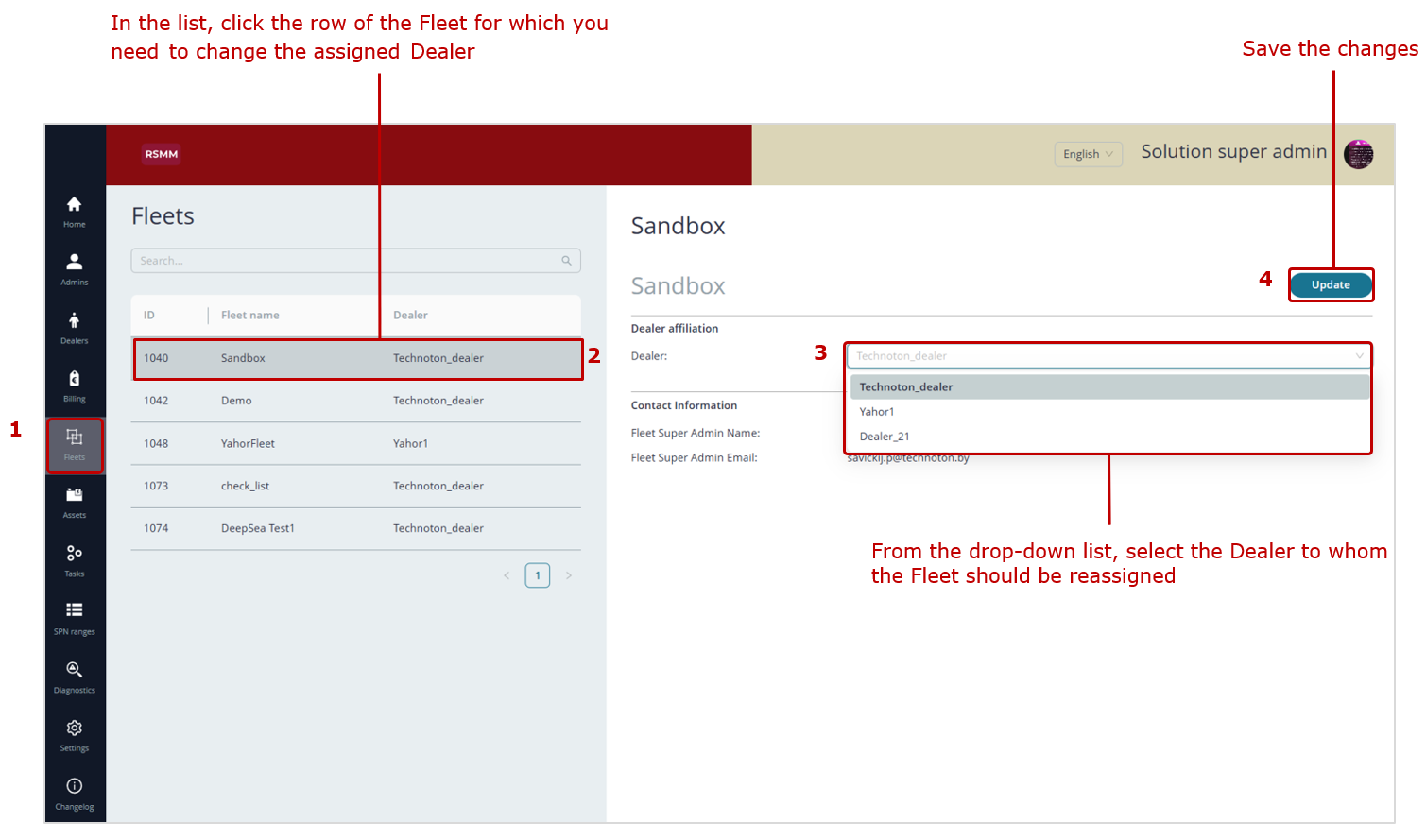
Figure 14 — Example of reassigning a Fleet to another Dealer
3.8 Changing a Fleet Assignment for an Asset #
|
ATTENTION: The function for reassigning an Asset to another Fleet within the Industry Solution is available only to the Solution Super Administrator and Solution Administrators. |
1) In the Main Menu, open the Assets tab, which displays a list of all Assets in the Industry Solution (see Figure 15).
2) In the Assets list, click the row of the Asset whose Fleet needs to be changed. Then, in the settings area, under the Fleet affiliation section, use the Fleet drop-down list to select the Fleet to which the Asset should be reassigned.
3) To save the changes, click button . After the system confirms that the data for the selected Asset have been successfully updated, the name of its new Fleet will appear in the Fleet column of the Assets list.

Figure 15 — Example of reassigning an Asset to another Fleet
3.9 Task Management #
|
ATTENTION: The rights to Manage Tasks within the Industry Solution are available only to the Solution Super Administrator and Solution Administrators. |
3.9.1 Creating a Task #
1) In the Main Menu, open the Tasks tab to access the Task Management window (see Figure 16).
2) In the opened Tasks window, click button  . In the tab panel that appears in the settings area, open tab
  and complete all the required fields marked with an asterisk (*):
– Task name* — enter the name of the Task.
|
IMPORTANT: The Task name may contain uppercase and lowercase Latin letters (A–Z, a–z), digits (0–9), the underscore symbol (_), and parentheses ( ). |
– Object* — select the target resource for the Task (Asset / Group / Geofence) by clicking the corresponding button on panel  . Based on the selected target resource, the Task will be automatically assigned a corresponding visualization icon (
  /
/  /
/  ).
).
– Class (max. # of keys)* — from the drop-down list, assign a Class to the Task (UNUM 25 / UNUM 50 / UNUM 100 / UNUM 200 / UNUM 400 / UNUM 800) that corresponds to the maximum number of preset Keys in it (25, 50, 100, 200, 400, 800 units).
3) If necessary, you can upload a graphical image to visually represent the Task by clicking the icon in the Icon field.
In the Description field, you may add a short text description (up to 300 characters including spaces) of the Task’s purpose.
4) To save the entered data, click button . After receiving a notification confirming the successful creation of the new Task, its name will appear in the list of Industry Solution Tasks, with an automatically assigned unique identification number (ID) for identification within the UNUM IIoT Platform.
5) To publish the created Task among the preset Tasks of the Industry Solution, select its row and click button  . Once the Task has been successfully published, a status icon
  will automatically appear in the Published column.
|
ATTENTION: After a Task is published, the information defined during configuration—its Class and purpose—will be displayed in the telematics service by clicking icon  on the corresponding Task tab. on the corresponding Task tab. |

Figure 16 — Example of Creating a New Task
3.9.2 Editing Basic Task Settings #
1) In the Main Menu, open the Tasks tab to access the Task Management window (see Figure 17).
2) In the opened Tasks window, select from the list the row of the Industry Solution Task whose data you need to edit.
For convenience, there is a Task search bar  by name.
Use the drop-down list  to filter Tasks by a specific target resource: Asset / Group / Geofence. To clear the selected filter, click the icon on the right side of the drop-down field.
Use the drop-down list  to filter Tasks by a specific Class: UNUM 25 / UNUM 50 / UNUM 100 / UNUM 200 / UNUM 400 / UNUM 800. To clear the selected filter, click the icon
  on the right side of the drop-down field.
3) By opening tab in the settings area, you can, if necessary, modify the previously entered basic Task settings: Task name*, Object*, Class (max. # of keys)*, Icon, Description.
4) To unpublish a Task from the list of preset Tasks of the Industry Solution, click button  . After the unpublishing confirmation message appears, the status icon in the Published column will be automatically removed.
5) To save the modified Task data, click button .

Figure 17 — Example of Editing Basic Task Settings
3.9.3 Creating Dashboard Templates for an Industry Solution Task #
1) In the Main Menu, open the Tasks tab to access the Task Management window (see Figure 18).
2) In the opened Tasks window, select from the list the Task of the Industry Solution for which you need to create a Dashboard Template.
3) Open the tab  in the settings area. This tab contains the list of Dashboard Templates for the current Task and allows you to perform the following actions:
- create a new Dashboard Template;
- edit or delete existing Dashboard Templates;
- view the list of Keys assigned to each Dashboard Template.
Note: The number of Dashboard Templates created for the selected Task is shown in parentheses to the right of the tab name (for example,  ).
).
The list of Dashboard Templates is displayed in a table format, where each row shows the number of preset Keys (column Keys) for the corresponding Template. To edit a Dashboard Template, use icon in the corresponding row; to delete it, use icon  . To view the list of preset Keys for the corresponding Dashboard Template, use icon
  .
.
4) To create a new Dashboard Template, click button  and, in the opened Dashboard Editor window, enter the Template name in the required field Name*.
|
IMPORTANT: The Dashboard Template name may contain uppercase and lowercase Latin letters (A–Z, a–z), digits (0–9), the underscore symbol (_) and parentheses ( ). |
To add a new widget to the Template, click button  .
.
For a single Asset, you can select the following widgets from the Add/Edit widget list window:
-
Single parameter — widgets for adding a single Key:
– Gauge — displays a dial with a pointer showing the current value of the selected indicator;
– Linear — displays a time graph showing changes in the indicator’s values over time;
– Simple — displays the value of the indicator as a decimal number with integer and fractional parts (if applicable);
– State — displays text messages depending on up to three predefined threshold values of the indicator. -
Multiple parameters — widgets for adding two or more Keys (optimally up to 10):
– Horizontal Bars — displays changes in indicator values as progress bars;
– Table — displays indicator values in a tabular format;
– Icon Grid — displays the indicators as icons selected from the Icon dropdown list. -
Special — widgets for standard preset Keys of any Asset:
– Event List — displays the total number of all registered Events (total, important, informational, and critical);
– Map — displays a Map;
– Asset Passport — displays the Asset’s electronic passport;
– Event Statistics — displays a list of Events registered over the past 24 hours;
– Fault Statistics — displays a list of all active and stored faults;
– Faults List — displays the number of faults (total, active, and stored) over the past 24 hours;
– Maintenance — displays the Asset’s Nodes for which maintenance is scheduled;
– Zone — highlights the title area (for example, a Genset pool) with a specific color and label;
– Commands — loads and displays a list of preset remote control commands for the Asset;
– Command — displays buttons assigned to remote control commands for the Asset (for example, engine stop, telematics gateway configuration or firmware update, Modbus RTU register writing, etc.).
For a Group of Assets, the Add/Edit widget window provides the following widgets:
- Group parameters — contains a single Table widget that allows adding up to 8 Keys to display, in tabular form, progress bars, indicators, and corresponding parameter values for each Asset within the Group.
- Special — widgets for standard preset Keys of any Asset within the Group:
– Event List — displays the total number of all registered Events (total, important, informational, and critical);
– Event Statistics — displays a list of Events registered during the past 24 hours;
– Zone — highlights the header area (for example, for a Genset pool) with a specific color and label.
For a Geofence, the Add/Edit widget window provides the following widgets:
- Map – Asset list — displays Asset locations on the Map within the Geofence, along with their list.
- Map – Events — displays Asset locations on the Map within the Geofence, showing entry and exit times.
- Map – Asset list – Events — displays Asset locations on the Map within the Geofence, including both the list of Assets and their entry/exit times.
When creating widgets from the Single parameter, Multiple parameters, and Group parameters sets, Keys containing a Parameter or Counter are added in the Add/Edit widget window within the available number of free Keys allowed for the corresponding Task.
Note: The number of Keys (free/total) available for the corresponding Task is always displayed on the right side of the Add/Edit widget window title.
When adding Keys to widgets, all fields marked with an asterisk (*) must be completed:
– SA* — enter the network address (Source Address) of the Unit that provides the Key data (see Annex B).
The Source Address for any Key used in Group Dashboard Templates is always 1000, regardless of the actual Source Addresses of equivalent Keys from individual Assets within the Group.
|
RECOMMENDATION: Specific data on all Units the Asset is equipped with and their network addresses may be obtained in Technoton technical support by e-mail support@jv-technoton.com. |
– SPN* — select the required standard SPN from the S6 Database or a VSPN from the dropdown list of Parameters/Counters provided according to the current Task.
If it is necessary to specify the selected SPN value in more detail, choose an appropriate Specifier from the dropdown list.
– Title* — this field is available only for widgets in the Multiple parameters set and is used to enter the widget header title.
In widgets containing two or more Parameters, click button  to add each new SPN to the table. After filling in all required fields (marked with *) and any optional ones in the Add SPN window, click button
  to save the data.
– Variant* — this dropdown list is available only in the Table widget for Groups and is used to select the display format for the Key: Value (displays a decimal number with integer and fractional parts (if applicable)) or Percentage (displays the value as a progress bar).
– Select command* — this dropdown list is available only in the Command widget and is used to select the required remote control command for the Asset.
Depending on the selected command, fill in the corresponding required attribute fields (marked with *) in the Enter the necessary data section.
– Command name* — this field is available only in the Command widget and is used to enter the button label for executing a remote control command for the Asset.
In some widgets, the Link to zone dropdown list allows linking the widget to a specific header previously defined using the Zone widget. This option is useful, for example, when grouping widgets within a Dashboard Template for a Genset pool.
After entering all widget settings in the Add Widget window, click button  to save the data — the widget will then be added to the Dashboard Template. If saving is not required, click icon
  in the upper right corner.
To reposition a widget, hold down the left mouse button and drag it to the desired location within the window. To resize a widget, drag icon  located in its lower-right corner.
After adding all required widgets to the new Dashboard Template (up to 50 widgets maximum), click button to save the entered data. If saving is not required, click icon  .
.
|
ATTENTION: A created Dashboard Template can be exported in the Dashboard Editor window using icon  into a file (*.tunum), which is saved to the computer’s memory. into a file (*.tunum), which is saved to the computer’s memory.Later, this file can be imported in the Dashboard Editor window using icon  to create other Dashboard Templates based on it. to create other Dashboard Templates based on it. |
5) To edit a Dashboard Template, click icon in the corresponding row of the template list. In the selected template, you can modify the name (field Name*), add new widgets, or edit/delete previously created widgets.
To open the settings window of a specific widget (Add/Edit widget), click icon  in the widget’s upper-right corner; to delete the widget, click icon
  .
.
When editing widgets from the Multiple parameters set that contain two or more Keys, click the corresponding icon in the row of the Key to edit it, or click icon to delete it.
To edit a Key’s settings in a Table widget for a Group, click icon in the corresponding row — it will change its appearance to icon . After making the changes, confirm them by clicking icon , or cancel by clicking icon to the right.
When editing a State widget for displaying text messages, you can adjust the Key’s threshold value, font color, and font size. To enable/disable the display of a message or delete it, click the respective icon  in its row.
After making changes to the widget, click button  to confirm them.
If necessary, you can change the widget’s position by dragging it to another area of the window. To resize the widget, drag icon  located in its lower-right corner.
When editing of the Dashboard Template is complete, click button in the upper-right corner to save the applied changes. If saving is not required, click icon  . In the dialog window Close without saving?, click button
  . If you wish to keep the changes, click button
  .
.
5) To delete a Dashboard Template, click icon in the corresponding row of the template list.
In the dialog box that appears, click button  to confirm the deletion of the template. If deletion is not required, click button .
|
WARNING: A deleted Dashboard Template cannot be restored. To prevent its loss, it is recommended to export the created template using icon into a (*.tunum) file stored on your computer. |

a) Preliminary actions

Widget sets available for Dashboard Templates of single-object Tasks

Example of adding a Key to a Gauge widget

Example of adding a Key to a State (text message) widget

Example of adding multiple Keys to a Progress Bar widget

Example of adding multiple Keys to an Icon Grid widget

Example of configuring a Zone Highlight widget

Example of configuring an Asset Passport widget

Saving a Dashboard Template
b) Example of creating a Dashboard Template for single-object Tasks

Sets of widgets used in Dashboard Templates for Group Tasks

Example of adding custom Keys to a table widget for a Group

Saving the Dashboard Template
b) Example of creating a Dashboard Template for Group Tasks

Set of widgets used in Dashboard Templates for Geofence Tasks

Saving the Dashboard Template
c) Example of creating a Dashboard Template for Geofence Tasks


Modifying widgets in a Single Asset Task Template

Modifying widgets in Group Templates

Cancelling widget edits
d) Examples of editing Dashboard Templates

e) Example of deleting a Dashboard Template
Figure 18 — Examples of Dashboard Template operations for Industry Solution Tasks
3.9.4 Forming Report Templates for an Industry Solution Task #
1) In the Main Menu, open the Tasks tab to access the Task Management window (see Figure 19).
2) In the opened Tasks window, select the row of the Industry Solution Task for which you need to create a Report Template.
3) Open tab  in the settings area. The tab contains the list of Report Templates for the current Task and allows you to perform the following actions:
-
create a new Report Template;
-
edit / delete existing Report Templates;
-
view the list of Keys in each Report Template.
Note: The number of Report Templates created for the selected Task is displayed in parentheses to the right of the tab name (for example,  ).
).
The list of Report Templates is displayed in a table format, where each row shows the number of predefined Keys (column Keys). To edit a Report Template, click icon , in the corresponding row; to delete — click icon ; to view the list of predefined Keys in the selected Report Template — click icon .
4) To create a new Report Template, hover the mouse cursor over button  and, from the panel that appears, select the icon of the required data set:
 – a set of Keys selected from the standard SPNs of the S6 Database or from VSPN (within the available number of free Keys).
 – a predefined set of Events normally received from the Asset.
 – a predefined set of Onboard Equipment Faults normally received from the Asset.
 – upload from the computer’s memory a previously created Report Template file (*.runum) for an Asset / Group / Geofence in order to create a new Template based on it.
In the opened Report Editor window, enter the name of the Template in the required field Name*.
|
IMPORTANT: The Report Template name may contain uppercase and lowercase Latin letters from A to Z and from a to z, digits from 0 to 9, the underscore symbol _, and parentheses (). |
To fill the widgets of the Report Template with Keys, click tile and then click the icon  at the top of the opened window to add a suitable widget to the Template.
Icon appears under each newly added widget in the Template and can be used to add other widgets later.
Widgets for a single Asset:
 – list of the Asset’s operating indicators.
 – charts of the Asset’s operating indicators (up to 3).
 – table of the Asset’s operating indicators.
 – header zone highlighted with a special color and caption.
 – Map of the mobile Asset’s trips.
 – information on maintenance of the Asset’s Nodes.
 – remote control commands for the Asset.
Widgets for a Group:
 – list of the main operating indicators of each Asset in the Group and summary data for the entire Group.
 – list of registered Events for each Asset in the Group.
 – detailed information on the Group’s operation with a breakdown of each Asset’s indicators and overall summary data.
 – information on a registered Event showing its attributes for each Asset in the Group.
 – list of registered Events for each Asset in the Group without data aggregation.
- – header zone highlighted with a special color and caption.
Widgets for a Geofence:
 – statistical information on Assets’ entries/exits and the number of Assets within the Geofence.
 – list of Asset entry/exit Events showing registration time and Asset markers on the Map.
 – list of registered Asset entry/exit Events showing time spent within the Geofence, without displaying markers on the Map.
 – header zone highlighted with a special color and caption.
To add a Key to a widget, click the Add parameter icon in the area of the relevant widget.
For Keys containing a Parameter or a Counter, user-defined Keys are added in the Add parameter settings window within the available number of free Keys for the corresponding Task.
If you need to add a title, choose the widget  and click the appropriate
  Edit title icon on the right.
While adding data into the widget, you are to fill in all obligatory fields marked with (*) characte:
– SA* — enter the network address of the source Unit for the Key being added (see Annex B).
The network address of any Key source for Group Report Templates is always 1000, regardless of the source network addresses of similar Keys for individual Assets within the Group.
|
RECOMMENDATION: Specific data on all Units with and their network addresses may be obtained in Technoton technical support by e-mail support@jv-technoton.com. |
– SPN* — select the required standard SPN from the S6 Database or VSPN from the drop-down list of Parameters/Counters provided according to the Task.
If you need to further specify the selected SPN value, choose the appropriate specifier from the Spec drop-down list.
– SPN Event* — select the required Event SPN from the drop-down list of Events provided according to the Task.
When adding an Event SPN to the Event Statistics and Event Info widgets in Group Report Templates, you must also specify the relevant Event attributes in the SPN* field.
– Asset* — a dropdown list that allows selecting the required data processing method for the added Key in the created Report Template (e.g., automatic calculation of the latest, average, total/differential, maximum/minimum values, count, etc.) for the Asset
Keys without data processing may also be added to the Report Template for an Asset.
– Group*— a dropdown list that allows selecting the required data processing method for the added Key in the created Report Template for a Group (e.g., automatic calculation of the latest, average, total/differential, maximum/minimum values, count, etc.).
For Keys added to a Group Report Template, data processing is mandatory.
– Title* — this field is available only for widget and is used to enter the header title.
– Color* — this field is available only for widget and is used to set the header background color.
After filling in the required widget fields in the Add parameter window, click  button to save the data. The Key will then be added to the Report template.
In the widget , after you create the title, press button in Edit title window; after that, the title will be added into the Report template.
If you need to remove a widget added to the Report template, click  icon in the relevant area.
After you add all widgets and titles into the new Report template, press  button, to save the data entered. If you don’t need saving the data, press
  icon.
icon.
|
ATTENTION: The created Report Template can be exported in the Report Editor window using icon into a file (*.runum), which is saved to the computer’s memory. Later, this file can be imported in the Report Editor window using icon to create new Report Templates based on it. |
5) To edit a Report Template, click icon in the corresponding row of the template list. In the selected template, you can modify the following as needed: the name field (Name*), add new widgets, edit or delete previously created widgets.
To add new widgets, use  icons in the middle of the Template window.
To add new Keys to a widget, click the Add parameter icon in the area of the relevant widget.
To edit Keys, use the corresponding icons in the widgets. After making changes to the Key data in the Update parameter window, click button to confirm them.
To edit the titles widgets , click the appropriate Edit title icons on the right. After making changes, click button to confirm them.
To delete a widget, click icon in the relevant area.
To delete Keys, use the corresponding  icons in the widgets.
As soon as you complete editing the Report Template, press button in the upper right corner, to save the changes made.
f you don’t need to save the data, press icon. In the dialog box Close without saving?, click button to confirm cancellation of the changes. If cancellation is not required, click button.
6) To delete a Report Template, click icon in the corresponding row of the template list.
In the opening dialog window, press button, to confirm the Template deletion. If you don’t need to delete it, press button.
|
WARNING: You should take note that a deleted Report Template cannot be restored. To prevent its loss, we recommend, using icon, to export the created Template into (*.runum) file which is saved in the PC memory. |

a) Preliminary operations


Example of adding a Key to a widget

Example of configuring a widget for header formatting

Saving a Report Template
b) Example of creating a Report Template for Single Object Tasks


Example of adding a Key to a widget

Example of adding data to the registered Events list widget

Example of adding data to the Event details widget

Saving the created Report Template
c) Example of creating a Report Template for Group Tasks


Saving the created Report Template
d) Example of creating a Report Template for Geofence Tasks


Example of editing Key data in a widget

Cancelling widget changes
e) Example of editing a Report Template

f) Example of deleting a Report Template
Figure 19 — Examples of operations for creating Report Templates for Industry Solution Tasks
3.9.5 Deactivation/Activation of widgets in Dashboard Templates and Report Templates for the selected Industry Solution Task #
1) In the Main Menu, open the Tasks tab to access the Task Management window (see Figure 20).
2) In the opened Tasks window, select from the list the line of the Industry Solution Task for which it is necessary to deactivate specific widgets in the Dashboard Templates and/or Report Templates.
3) Open tab  in the settings area. This tab contains icons of all widgets available for use in the Dashboard Templates (see 3.9.3) and Report Templates (see 3.9.4) of the current Task:
- Dashboard. Widgets available for this Task — set of widgets for Dashboards.
- Report. Widgets available for this Task — set of widgets for Reports.
To the left of each icon there is a checkbox field used to deactivate or activate the corresponding widget. By default, all checkboxes are selected, meaning all widgets are active.
4) To deactivate specific widgets, clear the checkboxes next to them. The deactivated widgets will be hidden from all Dashboard Templates and Report Templates of the current Task.
5) After making changes to the Task data, click button to confirm the updates.

Figure 20 — Example of widget deactivation/activation in Dashboard Templates and Report Templates for the selected Industry Solution Task
3.9.6 Viewing Key Information for the Selected Industry Solution Task #
1) In the Main Menu, open the Tasks tab to access the Task Management window (see Figure 21).
2) In the opened Tasks window, select from the list the line of the Industry Solution Task for which you want to view Key information.
3) Open tab  in the settings area. It displays the list of Keys of the current Task along with statistics showing: the total number of Keys (Total Keys); the number of preinstalled Keys (Used Keys); the number of available Keys (Available Keys).
Note: The number of preinstalled Keys for the selected Task is also shown in parentheses to the right of the tab name (for example,  ).
).
The list of Keys is presented in a table format, with each line showing the following attributes:
- SA – network address of the data source (Source Address);
- SPN – number and name of the monitored Indicator of the Asset / Group / Geofence;
- Specifier – the specific clarifier of the Indicator (if applicable).
For convenience, there is a search line  that allows searching Keys by SPN, name, or specifier.
4) To view detailed information showing the names of the specific Dashboards / Reports that include the selected Key, click icon in the corresponding line.

Figure 21 — Example of viewing Key information for the selected Industry Solution Task
3.9.7 Task Deletion #
1) In the Main Menu, open the Tasks tab to access the Task Management window (see Figure 22).
2) In the opened Tasks window, select from the list the line of the Industry Solution Task that needs to be deleted. Then, in the settings area, click button  .
.
|
ATTENTION: If the Task to be deleted is published among the predefined Industry Solution Tasks, button will be unavailable. In this case, you must first unpublish it by clicking button  . After receiving the notification confirming the Task unpublication, the status icon . After receiving the notification confirming the Task unpublication, the status icon  in the Published column will be automatically removed, and access to button will appear. in the Published column will be automatically removed, and access to button will appear. |
3) In the confirmation dialog window that appears, click button to confirm Task deletion. If deletion is not required, click button .
|
WARNING: Keep in mind that deleting a Task from the Industry Solution will also delete all associated data, including its Dashboards and Reports. To prevent data loss, it is recommended to save copies of the necessary Dashboard Template files (*.tunum) and Report Template files (*.runum) to the computer’s local storage. |

Figure 22 — Example of Task deletion
3.10 Setting SPN Value Ranges #
|
ATTENTION: 1) By default, SPN value ranges in Task sets are taken from the S6 Database. These default ranges may exceed the actual limits of the monitored Parameters. To ensure correct data processing and valid interpretation by the UNUM IIoT Platform cloud software, it is recommended to define minimum and/or maximum SPN values according to the actual measurement ranges of the monitored Parameters on specific Assets. 2) The rights to set SPN ranges within the Task sets of the Industry Solution are granted to the Solution Super Administrator / Solution Administrators. |
1) In the Main menu, open the SPN range tab. This window displays a table listing all SPNs included in the Task sets of the Industry Solution (see Figure 23).
Each SPN line shows its attributes: number (SPN № column); name and specifiers (if available) (Parameter Name column).
If the default SPN range has been modified, the corresponding line shows the user-defined range boundaries — lower limit (Range MIN column) and/or upper limit (Range MAX column).
For convenience, there is a search line for finding SPNs by number, name, or specifier.
2) To add a new SPN to the SPN Ranges list, click button in the settings area. In the appearing Add range to SPN window, fill in all required fields marked with an asterisk (*) :
- SPN* — Select the required item from the Parameters / Counters dropdown: either a standard SPN from the S6 Database or a VSPN.
If clarification of the selected SPN value is required, choose an appropriate specifier from the SPEC dropdown list. - Range MIN* — Enter the desired lower limit value of the SPN range.
- Range MAX* — Enter the desired upper limit value of the SPN range.
Click button  to save the entered data. After the notification of successful completion, the new SPN will be added to the SPN Ranges list.
3) If it is necessary to edit an SPN, click icon in the corresponding line of the SPN Ranges list. In the opened Add range to SPN window, make the required changes in the Range MIN* and Range MAX* fields.
Click button  to save the modified data. After the notification of successful completion, the updated values will appear in the respective columns of the SPN line.
4) If it is necessary to delete an SPN, click icon in the corresponding line of the SPN Ranges list. In the displayed confirmation dialog, click button . If deletion is not required, click button .

Adding a new SPN to the list

New SPN added to the list

Editing the SPN value range

Deleting an SPN from the list
Figure 23 — Examples of SPN operations within the set of Industry Solution Tasks
3.11 Server Self-Diagnostics Monitoring #
|
ATTENTION: Access rights for monitoring the Server self-diagnostics data of the Industry Solution are granted to the Solution Super Administrator / Solution Administrators. |
In the Main Menu, open the Diagnostics tab. This window displays self-diagnostic data of the three main modules of the Industry Solution Server within the UNUM IIoT Platform (see Figure 24):
- Aggregator — this module aggregates the Server’s input data, calculating their minimum, average, and maximum values for each hour. This ensures traffic compensation and optimization of data processing.
To monitor the module’s performance, you can track its current Indicators:
– Average duration — average time for processing one data packet;
– Average number of parameters — average number of parameters processed per data collection cycle.The quality of the Aggregator module operation can also be evaluated using time-based graphs of the Duration and Count param Indicators.
|
IMPORTANT: |
- Subscriber — this module parses incoming data packets from the Objects according to their SPN structure. To monitor the module’s performance, you can track its current Indicators:
– Loading — processing load during data packet handling;
– Queue — number of data packets waiting in the processing queue.
– Spns per second — number of SPNs processed per second.
The quality of the Subscriber module operation can also be evaluated using time-based graphs of the Queue and Count message Indicators. - Broker — this module provides data transportation from the Objects to subscribers in accordance with the UNUM MQTT protocol.
The header of each module displays its current operating status:  (operational) /
  (errors detected).
In the charts of the Aggregator and Subscriber modules, legends are displayed showing the line colors of the corresponding Indicators. By clicking on the name of any Indicator in the legend, you can enable or disable the display of its graph.
When you hover the cursor over any chart, the corresponding Indicator values, along with the date and time for the selected point, are displayed.
Below each chart, there is a time-axis scaling and navigation bar, where two manipulators  allow you to conveniently select and zoom in on a desired section of the graph and move along the selected range.
To reset the applied scaling, click the reset icon  located on the right side of the chart.
At the bottom of the window, a table of Server events is displayed, including operational errors. Each event line contains its name, brief description, and the date and time of occurrence.
To refresh the displayed Server diagnostic data, click the button  in the upper-right corner of the window. After receiving a notification confirming the successful data update, the date and time of the last update will appear to the left of this button.

Figure 24 — Example of monitoring Server self-diagnostic data in the UNUM IIoT Platform Industry Solution
3.12 Customization of the Industry Solution Website Appearance #
|
ATTENTION: Access rights to website customization according to the brand book of the owner are granted only to the Solution Super Administrator. |
1) In the Main Menu, open the Settings tab, which contains panel  — the configuration area for adjusting the visual appearance of the Industry Solution website.
2) In tab  (see Figure 25), the following input fields are available for entering notifications that are displayed in the user authorization window when logging into the Industry Solution website (see 3.1):
- Legal Notice — field for entering informational, marketing, or technical notifications for users.
- Terms of use link — field for entering the web link to the Public Offer Agreement for using the SaaS service of the Industry Solution, which defines the rights, responsibilities, and procedures of interaction between the rights holder and the subscribing legal entity.
- Privacy policy link — field for entering the web link to the Privacy Policy of the Industry Solution SaaS service, which describes the principles, purposes, and procedures for processing users’ personal data in accordance with the requirements of the GDPR and applicable legislation.
- Request confirmation — checkbox for requiring the user to confirm consent to the Public Offer Agreement and Privacy Policy of the Industry Solution SaaS service.
- System Message — field for system notifications to users (e.g., specifying the date and time of scheduled maintenance on the Server).

Figure 25 — Example of notification settings in the user authorization window
3) In tab  (see Figure 26), there are configuration areas for customizing the appearance of various pages, along with corresponding illustrative examples.

Figure 26 — Example of website appearance customization settings in the Industry Solution
- In the Start page style section, you can configure the design of the user authorization page (see Figure 27):
 |
Solution logo — an icon for uploading the logo of the Industry Solution. It is recommended to use a graphic file in one of the following formats: *.jpg, *.png, or *.svg, with an aspect ratio of 4:3. To upload the logo, click the icon |
 |
Start page background — an icon for uploading a background image for the authorization page. It is recommended to use a graphic file in one of the following formats: *.jpg, *.png, or *.svg, also with an aspect ratio of 4:3. To upload the background image, click the icon  . If you need to remove the uploaded image, click the delete icon . If you need to remove the uploaded image, click the delete icon  inside the same area. inside the same area. |
|
 |
Backgroundcolor (startpage) — field for setting the background color of the authorization page. Click on the left part of the field to open the color editing window, then select the required color model (HEX / HSB / RGB) from the drop-down list and enter the color parameters according to the brand book. | |
 |
Logobackgroundcolor (startpage) — field for setting the background color under the logo. Click on the left part of the field to open the color editing window, then select the required color model (HEX / HSB / RGB) from the drop-down list and enter the color parameters according to the brand book. | |
 |
Buttoncolor (startpage) — field for setting the color of the login button. Click on the left part of the field to open the color editing window, then select the required color model (HEX / HSB / RGB) from the drop-down list and enter the color parameters according to the brand book. | |
 |
Demo button — field for adding a button to log in to the demo version of the website. To enable the button, check the box in this field. To remove it, uncheck the box. Login Demo — field for entering the demo user login used to authorize access to the demo version of the website. Password Demo — field for entering the demo user password used to authorize access to the demo version of the website. |

Figure 27 — Example of an illustration explaining the design of the user authorization page
- In the Solution Admin page style section, you can configure the appearance of the Solution Administrator’s page (see Figure 28):
 |
Logo of header — icon for uploading the logo of the Industry Solution in the page header. It is recommended to use an image file in .png or .svg format. To upload the logo, click the icon . If you need to remove the uploaded logo, click the delete icon inside the same area. |
|
 |
Title background color — field for setting the background color of the title area (left half of the window). Click on the left part of the field to open the color editing window, then select the desired color model (HEX / HSB / RGB) from the drop-down list and enter the color parameters according to the brand book. | |
 |
Additional background color — field for setting an additional background color for the title area (right half of the window). Click on the left part of the field to open the color editing window, then select the desired color model (HEX / HSB / RGB) from the drop-down list and enter the color parameters according to the brand book. |

Figure 28 — Example of an illustration explaining the design of the Solution Administrator page
- In the Dealer Admin page style section, you can configure the appearance of the Dealer Administrator page on the Industry Solution website (see Figure 29):
 |
Logo of header — icon for uploading the logo of the Industry Solution in the page header. It is recommended to use an image file in .png or .svg format. To upload the logo, click the icon . If you need to remove the uploaded logo, click the delete icon inside the same area. |
|
 |
Title background color — field for setting the background color of the title area (left half of the window). Click on the left part of the field to open the color editing window, then select the desired color model (HEX / HSB / RGB) from the drop-down list and enter the color parameters according to the brand book. |
|
 |
Additional background color — field for setting an additional background color for the title area (right half of the window). Click on the left part of the field to open the color editing window, then select the desired color model (HEX / HSB / RGB) from the drop-down list and enter the color parameters according to the brand book. |

Figure 29 — Example of an illustration explaining the design of the Dealer Administrator page
- In the Fleet page style section, you can configure the appearance of the Fleet page (see Figure 30):
 |
Logo of header — icon for uploading the logo of the Industry Solution in the page header. It is recommended to use an image file in .jpg, .png, or .svg format with an aspect ratio of 1:1. To upload the logo, click the icon . If you need to remove the uploaded logo, click the delete icon inside the same area. |
|
 |
Title background color — field for setting the background color of the title area. Click on the left part of the field to open the color editing window, then select the desired color model (HEX / HSB / RGB) from the drop-down list and enter the color parameters according to the brand book. |

Figure 30 — Example of an illustration explaining the design of the Fleet page
4) To update the data, click button . After receiving a notification of successful data update, the changes in the design of the Industry Solution website will be applied.
3.13 Checking the current versions and updates of the cloud software #
|
ATTENTION: Access rights to check the current versions and updates of the Industry Solution cloud software are granted only to the Solution Super Administrator. |
In the Main Menu, open the Changelog tab — the window displays information about the current versions and the chronology of changes, updates, and fixes applied to both the user interface (Frontend list) and the server side (Backend list) of the Industry Solution cloud software (see Figure 31).
Each record in the Changelog lists includes the date and a description of the corresponding software change, allowing timely tracking of important updates.

Figure 31 — Example of checking the list of cloud software updates
Annex A Deployment procedure of a local Industry Solution Server on the UNUM IIoT Platform #
A.1 Server configuration selection #
Table A.1 — Server configuration requirements
| Element | Configuration | ||
| Maximum | Optimal | Minimum | |
| Operating System | Linux (CentOS 7 recommended; do not use AppArmor) | ||
| Processor | 2 processors, 16 threads each | 1 processor, 16 threads | |
| RAM | 96 GB | 64 GB | |
| Data Storage Devices | 8 TB required. SSDs recommended | 8 TB required. It is recommended to use RAID 10 when installing HDDs | 4 TB required. It is recommended to use RAID 10 when installing HDDs |
A.2 Installing the Ubuntu Server OS #
1) Go to https://ubuntu.com/download/server and download the Ubuntu Server disk image.

2) If the Ubuntu Server OS will be installed on a physical server, you must first create a bootable USB flash drive by writing the downloaded image using the RUFUS application (link: https://rufus.ie).
- After downloading RUFUS, install and launch the program.
- Insert the USB flash drive that will be used to write the image (Note: all data on the drive will be erased), and select the downloaded Ubuntu Server image. Confirm the suggested settings and click START to begin writing.

-
Boot the server from the USB drive by pressing F12 (the key may differ depending on the motherboard manufacturer).
-
If installation is performed on a virtual server, it is recommended to contact your system administrator for assistance.
3) After a successful boot from the USB flash drive, the installation wizard window will appear. Select *Try or Install Ubuntu Server.

4) Choose the language — English.

5) Click Done to confirm the language selection.

6) Make sure Ubuntu Server is selected, then click Done to continue.

7) At the network configuration stage, choose a static IP address instead of obtaining one via DHCP, and click Save to apply the changes.


8) If a proxy is used, specify its address; otherwise, leave the field empty and click Done to proceed.

9) You can keep the archive mirror settings as default. After the mirror test is completed, click Done to continue.

10) Perform disk partitioning.
Details of the disk layout will be displayed on the next step of the installation wizard. Note that by default, the installer does not allocate all available space of the logical LVM volume.

It is recommended to assign the entire disk space to the operating system.

If you set the value 99999999 in the Size field, the system will automatically allocate all remaining free disk space to the operating system.

After applying the changes, the LVM logical volume will occupy all available disk space (the example shows partitioning for a 40 GB disk). Click Done to confirm the changes.

11) Click Continue to confirm the applied disk partitioning changes.

12) Enter the username, password, and server name, then click Done to confirm.

13) Select Install OpenSSH server to enable remote access and configuration of the UNUM IIoT Platform Industry Solution software.

14) If necessary, in addition to the standard server packages of the UNUM IIoT Platform Industry Solution, you can select additional packages available in the installer. Click Done to proceed with the installation.

15) The Ubuntu Server OS installation process will begin. Once the installation is complete, the setup wizard will prompt you to reboot the system — remove the USB flash drive before doing so.
A.3 Installing UNUM Software on the Server #
1) If the deployed Industry Solution Server is not located within the Technoton internal network, you need to configure port forwarding (NAT) for its IPv4 address to make it accessible from the Internet. Send this IP address to Technoton Support at support@jv-technoton.com so they can configure the connection between the central UNUM IIoT Platform Server and your deployed Server.
After the connection setup, the Technoton Support team will provide you with an ID, login, and password, which will be required during the installation process.
Command to check the Server IP address: ip a

2) Download the UNUM software installation archive and upload it to the installed Ubuntu Server OS.
If the archive was downloaded to a Windows PC, you can transfer it to Ubuntu Server using the WinSCP program (link: https://winscp.net/eng/download.php).

In the Host name field, specify the Server name or its IP address.
In the User name and Password fields, enter the login and password used during the OS installation.
3) Extract the UNUM software archive to the root directory with the following command:
sudo tar -xzvf archive_name.tar.gz -C /
For example, if the archive name is unum 2.3.tar.gz , the command will be:
sudo tar -xzvf unum 2.3.tar.gz –C /
4) Verify that the /unum-inst directory has been created using the command:
ls –la /

5) Run the installation script jail.sh with the following command to start the installation process:
sudo /unum-inst/jail.sh
Enter Yes

Enter the ID provided by Technoton Support

Enter the username for the Solution Super Administrator, who will have full access rights to operate the UNUM software.

Enter the chosen password for the Super Administrator (note that the password will not be displayed while typing), and then re-enter it to confirm.

Enter Yes

Enter Yes

Enter Yes, after which the Server will restart

The installation of UNUM software for the Industry Solution is now complete. To access the Industry Solution website, open a web browser and enter the IP address of the deployed Server.
The connection uses the HTTP protocol. The website address of the Industry Solution in the browser should look like this: http://server_address/login
Annex B Recommended Unit Network Addresses #
Table B.1 — Permitted network addresses of Units installed on an Object within a unified network
| Units S6 | Maximum quantity per single Asset | Permitted network addresses (SA) | |
| Type | Model | ||
| Telematics gateway | CANUp 27 | 1 | 100 |
| CAN j1939/S6 Display | MasterCAN Display 35 | 2 | 109, 110 |
| Fuel flow meters | DFM CAN /DFM D CAN | 16 | 0…240 (recommended ranges 111…118, 151…158) |
| DFM Marine CAN | |||
| Flow meters | DFM Industrial CAN | 8 | 111…118 |
| Fuel level sensors | DUT-E CAN | 16 | 91…98, 101…108 |
| DUT-E GSM | |||
| DUT-E 2Bio CAN | |||
| Data converters | MasterCAN CC | 2 | 0…250 (recommended addresses 122, 142) |
| MasterCAN C232/485 | 2 | 124, 144 | |
| MasterCAN V-Gate | 2 | 125, 145 | |
| MasterCAN CAN2RS | 1 | 135 | |
| MasterCAN RS2CAN | 1 | 134 | |
| MasterCAN P2CAN | 1 | 140 | |
| Contactless reader-converter | FMSCrocodile CCAN | 1 | 122 |
| j1939 i/o module | MasterCAN DAC15 | 2 | 126, 146 |
| MasterCAN DAC2113 | 127, 147 | ||
| Position sensor | GNOM DP CAN | 1 | 218, 82…85 |
| Wireless interface | Marker S7 Radiobox CAN | 1 | 131 |
| Signal converter | GNOM S7 Radiobox CAN | 1 | 148 |
| Signal converter | S7 Radiobox CAN | 1 | 142 |