
Press Enter to go to the next word.
Revision history #
| Version | Date | Editor | Description of changes |
| 1.0 | 01.2026 | OD | Basic version |
Introduction #
This Guide is intended for Fleet Operators / Viewers of the Industry Solution based on the UNUM IIoT Platform, an Industrial Internet of Things platform developed by Technoton.
The Guide provides information on the user interface and the practical use of the UNUM IIoT Platform cloud software by Fleet Operators / Viewers of the Industry Solution.
The user interface of the UNUM IIoT Platform cloud software is available via a PC web browser and does not require the installation of any additional software.
 |
ATTENTION: When working with the UNUM IIoT Platform software, strictly follow the recommendations provided in this Guide. |
To ensure correct operation of the UNUM IIoT Platform software, access rights should be granted only to certified users who have completed official Technoton training.
|
ATTENTION: Technoton reserves the right to modify the interface appearance and functional capabilities of the UNUM IIoT Platform software without prior agreement with the customer, provided that such changes do not degrade its consumer properties. |
1 Access rights #
Each user of the Industry Solution based on the UNUM IIoT Platform is assigned a unique login and password to access their account. Specific access rights are defined within the user account, determining which user interface elements are visible, which Fleet resources are available, and which actions the user is permitted to perform (see Table 1).
Table 1 — Access rights of Operator / Viewer users of the UNUM IIoT Platform Industry Solution
| User | Access rights |
| Operator |
|
| Viewer |
|
|
IMPORTANT: The account of a specific user within the Industry Solution contains all elements created by that user. When the user account is deleted, all elements created by that user are also deleted. |
2 Requirements to user workspace #
For correct operation of the UNUM IIoT Platform cloud software, a dedicated PC (desktop or laptop) with unrestricted Internet access is required, meeting the following system requirements:
Minimum system requirements:
-
Operating system: Win 10 (X32/X64) / Win 11 (X32/X64) / OS X / MacOS / Linux
-
Processor: 2 cores, 2.0 GHz
-
RAM: 4 GB
-
Hard drive: 128 GB
-
Display resolution: 1920×1080
Recommended system requirements:
-
Operating system: Win 10 (X32/X64) / Win 11 (X32/X64) / OS X / Linux
-
Processor: 4 cores, 2.5 GHz or higher
-
RAM: 8 GB or more
-
Hard drive: 128 GB or more
-
Display resolution: 1920×1080 (1920×1200)
The PC must have the latest version of one of the following Internet browsers installed:
- Google Chrome
- Mozilla Firefox
- Opera
- Safari
|
RECOMMENDATION: Antivirus software installed on the PC may slow down browser performance and data retrieval from the Server. If the PC becomes sluggish while working with the Industry Solution website, add its URL to the antivirus exclusion list or temporarily disable network monitoring in the antivirus settings during operation. |
3 Quantitative limits for resources #
Table 2 — Fleet-level quantitative Limits for Resources of the Industry Solution UNUM IIoT Platform
| Resource | Maximum Quantity, pcs. | Ownership |
| Assets | 300 | one Fleet |
| 20 | one Group | |
| Groups | 50 | one Fleet |
| Geofences | 50 | one Fleet |
| Tasks | 100 | one Industry Solution |
| Dashboards | 15 | one Task |
| Reports | 15 | one Task |
4 Cloud Software Settings for Fleet Monitoring #
1) Fleet Operators / Viewers subscribe Assets, Groups, and Geofences to the required Tasks (see section 5.3).
2) Fleet Operators create the required Dashboard Templates (see section 5.5) and Report Templates (see section 5.6), and assign Assets / Groups / Geofences to these templates (see section 5.4).
5 Working with UNUM IIoT Platform cloud software #
5.1 Authorization #
Enter the URL of the Industry Solution website in the browser address bar.
To authorize, enter the user login (the Login field) and password (the Password field) received when your account was created, and click the Log in button (see Figure 1).
|
IMPORTANT: The user login must be unique. The selected user login and password may contain: uppercase and lowercase Latin letters from A to Z and from a to z, digits from 0 to 9, and the underscore character _. |
During the first authorization, the user must review the terms of use of the telematics service provided via the Terms of Use and Privacy Policy links and confirm acceptance of these terms.
In addition, on the authorization page, users receive the necessary notifications from the UNUM IIoT Platform administration (for example, about the date and time of scheduled maintenance works and possible loss of connection with the Server).

Figure 1 — Example of the user authorization window for logging in to the account on the Industry Solution website*
* Hereinafter, using UNUM Genset as an example — the Industry Solution for Diesel generators.
5.2 Interface of Main monitoring window #
After user authorization, the Main Monitoring window opens (see Figure 2), in which it is possible to configure the cloud software for Fleet monitoring and to perform subsequent Real-time monitoring and/or Post-analysis of the operation of Assets / Groups / Geofences.

a) example of the Home page

b) example of the User account menu
Figure 2 — Main Monitoring window interface
The Main Monitoring window includes the following work areas:
1) Main menu, which contains the following tabs:
 |
Home — this is the Home page that opens immediately after user authorization and contains the Fleet resource panel with separate tabs for displaying lists of individual Assets (the Assets tab), Groups (the Groups tab), and Geofences (the Geofences tab). |
- Field for searching the required resource by name.
- The All / Online / Offline buttons are used to display the full list of Assets and to filter the lists of Assets that are in online and offline statuses. Each button shows the number of Assets in the corresponding list.
- The Asset list is presented in a table format. Each Asset line contains its icon, name, Indicators of the connection status of its Telematics terminal, and the availability of engine operation data.
 indicator in the corresponding column indicates the online status of the Asset and the availability of engine operation data from it on the Server.
 indicator indicates the offline status of the Asset and the absence of engine operation data from it on the Server.
 indicator indicates an undefined Asset status. In this case, dashes are displayed in the corresponding columns of engine operation data.
- In the Group list, the number of Assets included in each Group is shown. If necessary, the drop-down list of included Assets can be expanded. By clicking the line of the required Asset, its location on the Map can be viewed.
- In the Geofence list, the number of Assets located in each Geofence is shown. If necessary, the drop-down list of located Assets can be expanded. By clicking the line of the required Asset, its location on the Map can be viewed.
 |
Dashboards — this tab is intended for Real-time monitoring of the operation of the selected Asset / Group / Geofence using Dashboards (see Figure 3). |
The tab contains a set of tabs of Tasks preconfigured by default. From these, the required Dashboard Templates configured for specific sets of Keys can be selected.
If necessary, the selected Asset / Group / Geofence can be subscribed to inactive Tasks by activating them by clicking the corresponding Activate button.
By clicking  icon in the tab of the corresponding Task, its description window can be opened, containing information about the Task Class and purpose, the number of Keys (total, preconfigured, free), as well as a list of default preconfigured Keys. For convenience, a Key search line by their attributes (SA or SPN) is provided.

a) default preconfigured Tasks with Dashboard Templates

b) Task description window
Figure 3 — Example of the Dashboards tab
 |
Reports — this tab is intended for Post-analysis of the operation of the selected Asset / Group / Geofence based on Analytical reports for the specified time period (see Figure 4). |
The tab contains a set of tabs of Tasks preconfigured by default. From these, the required Report Templates configured for specific sets of Keys can be selected. Then, the time period for which the Report must be generated should be specified.
If necessary, the selected Asset / Group / Geofence can be subscribed to inactive Tasks by activating them by clicking the Activate button.
By clicking icon in the tab of the corresponding Task, its description window can be opened, containing information about the Task Class and purpose, the number of Keys (total, preconfigured, free), as well as a list of default preconfigured Keys. For convenience, a Key search line by their attributes (SA or SPN) is provided.

a) default preconfigured Tasks with Report Templates

b) Task description window


| selection of “one day” period | selection of “one week” period |

| selection of “one month” period | selection of “3 recent months” period |

| selection of a custom period from the last three months | selection of the data sampling interval for Keys in tabular Reports |
c) options for setting the time period
Figure 4 — Example of the Reports tab
 |
Graphs — this tab is intended for Post-analysis of the operation of the selected Asset using Multi-graphs (with combination of up to 3 graphs) of changes in the specified SPN from the array of raw (RAW) data accumulated on the Server for the specified time period. |
The tab contains a drop-down list from which up to 3 required SPN can be selected. Then, the time period for which the Multi-graph must be generated should be specified (see Figure 5).

Figure 5 — Example of selecting data to generate a Multi-graph for the specified time period in the Graphs tab
 |
Management — this tab is intended for opening windows for managing Fleet elements (see Figure 6). |
The Management windows allow you to:
- Manage:
– Dashboard Templates for Assets (the Dashboards tile → Assets tab);
– Dashboard Templates for Groups (the Dashboards tile → Groups tab);
– Dashboard Templates for Geofences (the Dashboards tile → Geofences tab);
– Report Templates for Assets (the Reports tile → Assets tab);
– Report Templates for Groups (the Reports tile → Groups tab);
– Report Templates for Geofences (the Reports tile → Geofences tab). - Assign Assets to Dashboard Templates and Report Templates from subscribed Tasks (the Assets tile → Dashboards / Reports tab).
- Assign Groups to Dashboard Templates and Report Templates from subscribed Tasks (the Groups tile → Dashboards / Reports tab).
- Assign Geofences to Dashboard Templates and Report Templates from subscribed Tasks (the Geofences tile → Dashboards / Reports tab).

Figure 6 — Example of the Management tab available to a Fleet Operator
2) The Information panel is used to display: the name of the selected Fleet resource, the name of the open Main menu tab, the Language menu (selection of Russian / English / Spanish / French interface language), and the User account menu in the form of a user avatar under the name with which authorization was performed (see Figure 2).
When selecting the Dashboards, Reports, Graphs tabs, a  menu appears on the Information panel, in which the required Fleet resource can be selected — an Asset (from the Assets list), a Group (from the Groups list), or a Geofence (from the Geofences list).
3) The Map is used to display the location of Assets.
Asset markers on the Map are visualized with icons according to the specified type (stationary / mobile). Icons of Assets with online status are displayed in green, and offline status — in gray. If an Asset has an undefined status, its icon is displayed in red.
For a moving online Asset, the last 10 points of its track are displayed on the Map.
The Map scale is adjusted by rotating the mouse wheel or using the + / − buttons in the upper left corner of the screen.
4) Asset Card — this window appears when clicking an Asset marker on the Map and is used to display brief information about the selected Asset: name, brand, model, date and time of the last data receipt on the Server, indicators of online status and availability of engine operation data, and location coordinates.
In addition, by clicking the Dashboards and Reports buttons in the Asset Card, it is possible to quickly navigate to the tools for Real-time monitoring and Post-analysis of the operation of the selected Asset.
5) The User account menu contains the user account data under whose name authorization on the website was performed.
If necessary, by clicking the avatar icon (  by default ), the user can change the following in the opened window:
- the graphic avatar symbol (in the Avatar area, click
 icon and upload a file in *.jpg, *.png, *.svg, etc. format from the computer disk);
 -
personal user data (for example, first name or last name) (the Personal information area, the Name field);
-
the email address for restoring the user login and/or password in case of loss, as well as for receiving Event notifications (the Contact information area, the Email field);
-
the user login and password for authorization when logging into the account (the UNUM access area, the Login and Password fields, respectively);
-
set the checkbox in the Receive email notifications field (the Notifications area) to receive email notifications about registered emergency Events, as well as about Asset entry to / exit from a Geofence.
|
IMPORTANT: The user login must be unique. The selected user login and password may contain: uppercase and lowercase Latin letters from A to Z and from a to z, digits from 0 to 9, and the underscore character _. |
To additionally review the previously accepted terms of use of the telematics service, the Terms of Use and Privacy Policy links at the bottom of the menu window can be used.
To save changes in the User account menu, click the Update button. To log out of the account, click the Logout button.
|
RECOMMENDATION: For full-screen display in the browser of any open tab of the Main Monitoring window, press the F11 key on the computer keyboard. |
5.3 Subscribing Assets / Groups / Geofences to Tasks #
|
IMPORTANT: 1) Tariffs for telematics services are the same for all Fleets within the Industry Solution. 2) Each Task is defined by a specific set of Keys. An Asset / Group / Geofence can be subscribed to all relevant preconfigured Tasks of the Industry Solution. 3) Subscription to Tasks can be performed by any Fleet user, including Operators / Viewers. Unsubscribing from Tasks is available only to the Fleet Super Administrator / Fleet Administrators. 4) The minimum subscription period is 1 month. |
To subscribe to a Task:
1) In the Main Menu, open the Home tab and, in the Fleet Resource Panel, select the resource for which a subscription is required. Choose the corresponding Asset (Assets tab), Group (Groups tab), or Geofence (Geofences tab) from the list (see Figure 7).
2) Open the Reports or Dashboards tab and, from the set of tabs with preconfigured Tasks, select the required inactive Task and activate it by clicking the Activate button.
3) In the Subscribing to a task window that appears, confirm your agreement with the subscription terms by checking the box I confirm the subscription and agree to its terms, then click Subscribe. After confirmation, the Task tab becomes active, indicating that the subscription for the selected Asset / Group / Geofence has been successfully completed.

Figure 7 — Example of subscribing an Asset to a Task
5.4 Linking Dashboard Templates and Report Templates #
5.4.1 Linking Assets #
1) In the Main menu, open the Management tab and click Assets to go to the Asset Management window (see Figure 8).
|
ATTENTION: The Management tab is available only to Operators with standard default access rights. Users with the Viewer role have limited access rights, therefore the Management tab is not available to them. |
2) In the list of Fleet Assets, select the Asset for which the linkage needs to be configured.
3) In the settings area, open the Dashboards/Reports tab and use the checkboxes to assign or remove the selected Asset’s linkage to: Dashboard Templates (column Dashboards), and Report Templates (column Reports) that belong to the Tasks to which the Asset is subscribed.
4) After completing the assignment or removal of the Asset’s linkage to Dashboard Templates and/or Report Templates, click Update to save the changes.

Figure 8 — Example of assigning/removing an Asset’s linkage to Dashboard Templates / Report Templates
5.4.2 Linking Groups #
1) In the Main menu, open the Management tab and click Groups to go to the Group Management window (see Figure 9).
|
ATTENTION: The Management tab is available only to Operators with standard default access rights. Users with the Viewer role have limited access rights; therefore, the Management tab is not available to them. |
2) In the list of Fleet Groups, select the Group for which the linkage needs to be configured.
3) In the settings area, open the Dashboards/Reports tab and use the checkboxes to assign or remove the selected Group’s linkage to: Dashboard Templates (column Dashboards), and Report Templates (column Reports) that belong to the Tasks to which the Group is subscribed.
4) After completing the assignment or removal of the Group’s linkage to Dashboard Templates and/or Report Templates, click Update to save the changes.

Figure 9 — Example of assigning/removing a Group’s linkage to Dashboard Templates / Report Templates
5.4.3 Linking Geofences #
1) In the Main menu, open the Management tab and click Geofences to go to the Geofence Management window (see Figure 10).
|
ATTENTION: The Management tab is available only to Operators with standard default access rights. Users with the Viewer role have limited access rights; therefore, the Management tab is not available to them. |
2) In the list of Fleet Geofences, select the Geofence for which the linkage needs to be configured.
3) In the settings area, open the Dashboards/Reports tab and use the checkboxes to assign or remove the selected Geofence’s linkage to: Dashboard Templates (column Dashboards), and Report Templates (column Reports) that belong to the Tasks to which the Geofence is subscribed.
4) After completing the assignment or removal of the Geofence’s linkage to Dashboard Templates and/or Report Templates, click Update to save the changes.
|
IMPORTANT: When the linkage of a Geofence to Dashboard Templates and Report Templates is changed, all Events associated with this Geofence for the relevant Reports and Dashboards will be deleted. Further Event registration for this Geofence will be performed according to the new settings. To save the changes to the Geofence settings, you must confirm your consent to delete the Events. |

Figure 10 — Example of assigning/removing a Geofence’s linkage to Dashboard Templates / Report Templates
5.5 Management of Dashboards Templates #
5.5.1 Creation of a Dashboard Template #
1) Open Management tab in the Main menu and press Dashboards tile, to enter Dashboard Templates Management window (see Figure 11).
2) In the Dashboards for window that appears, select the Fleet resource tab for which the Template must be created: Assets (for a single Asset), Groups (for a Group), or Geofences (for a Geofence). After that, Task tabs will be displayed for the selected resource, under which Dashboard Templates are grouped with the corresponding sets of Keys.
3) To create a new Dashboard Template, click  icon at the bottom of the tab of the required Task and, in the opened Management window, enter the name of the Template being created in the mandatory Name* field. Then, in the corresponding drop-down lists For assets (for an Asset), Applied to Groups (for a Group), or Applied to Geofences (for a Geofence), specify the names of the target Fleet resources (Assets, Groups, Geofences respectively) for which this Template can be used after it is created.
|
IMPORTANT: The Dashboard Template name may contain: uppercase and lowercase Latin letters from A to Z and from a to z, digits from 0 to 9, the underscore character _, and round brackets (). |
4) To add a new widget to the Template, click the Add widget button.
For a single Asset, the following widgets can be selected from the Add/Edit widget widget set window:
- Single parameter — widgets for adding one Key:
– Gauge — display of a scale with a pointer indicating the current value of the corresponding parameter;
– Linear — display of a Graph of changes in the values of the corresponding parameter over time;
– Simple — display of the value of the corresponding parameter as a decimal number with an integer and fractional part (if available);
– State — display of text messages depending on the specified threshold values (up to 3) of the corresponding Parameter. - Multiple parameters — widgets for adding two or more Keys (optimally — up to 10):
– Horizontal Bars — display of changes in the values of the corresponding parameters in the form of progress bars;
– Table — display of the values of the corresponding parameters in a table format;
– Icon Grid — display of the corresponding parameters as icons selected from the Icon drop-down list. - States — widgets for adding Keys based on Transport SPN (optimally — up to 5):
– State — status of the current state of the Asset (Unit);
– State List — list of states and operating modes of the Asset (Unit);
– Alarm and flags — table of all possible functional state flags and alarms of the Asset (Unit);
– Active alarm and flags — table of active functional state flags and alarms of the Asset (Unit) only. - Special — widgets for standard preconfigured Keys of any Asset:
– Event List — display of the number of all registered Events (total, important, informational, and emergency);
– Map — display of the Map;
– Asset Passport — display of the electronic Asset Passport;
– Event Statistics — display of the list of Events registered over the last 24 hours;
– Fault Statistics — display of the list of all active and stored faults;
– Faults List — display of the number of faults (total, active, and stored) over the last 24 hours;
– Maintenance — display of Asset Nodes for which maintenance is scheduled;
– Zone — highlighting of a header zone (for example, for an Asset pool) with a special color and label;
– Commands — loading and display of the list of preconfigured remote control commands of the Asset;
– Command — display of buttons assigned to remote control commands of the Asset (for example, engine stop, configuration and firmware update of the telematics gateway, writing Modbus RTU registers, etc.).
For an Asset Group, the following widgets can be selected from the Add/Edit widget widget set window:
- Group parameters — contains one Table widget for adding up to 8 Keys to be displayed in a table format with progress bars, indicators, and values of the corresponding parameters for each Asset included in the Group.
- Special — widgets for standard preconfigured Keys of any Asset included in the Group:
– Event List — display of the number of all registered Events (total, important, informational, and emergency);
– Event Statistics — display of the list of Events registered over the last 24 hours;
– Zone — highlighting of a header zone (for example, for an Asset pool) with a special color and label.
For a Geofence, the following widgets can be selected from the Add/Edit widget widget set window:
- Map – Asset list — monitoring of Asset presence in the Geofence on the Map with display of their list.
- Map – Events — monitoring of Asset presence in the Geofence on the Map with indication of their entry/exit times.
- Map – Asset list – Events — monitoring of Asset presence in the Geofence on the Map with display of their list and indication of entry/exit times.
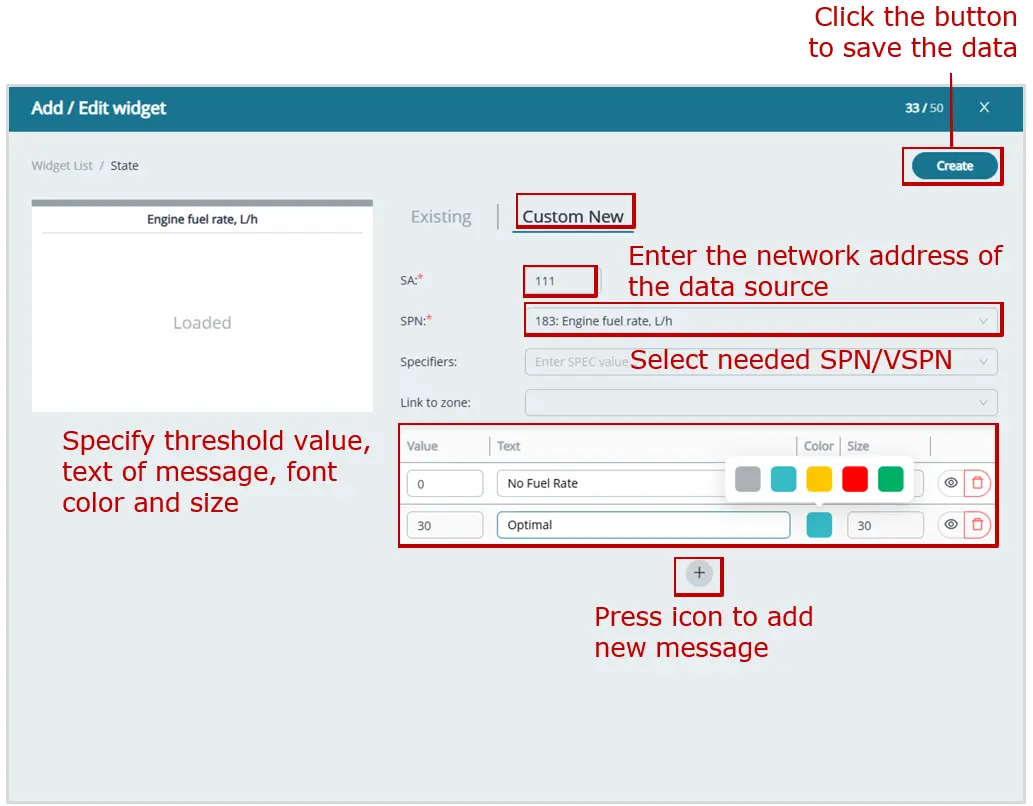
When creating widgets from the Single parameter, Multiple parameters, and Group parameters sets, two options for adding Keys containing a Parameter or a Counter are available in the Add/Edit widget settings window:
- On the Existing tab — Keys are added from the list of default preconfigured Keys for the corresponding Task.
- On the Custom New tab — custom Keys are created and added within the available number of free Keys for the corresponding Task.
Note — The number of Keys (free / total) for the corresponding Task is always indicated on the right side of the header of the Add / Edit widget window.
When adding custom Keys to widgets, all mandatory fields marked with the * symbol must be filled in:
– SA* — enter the network address of the Unit that is the source of the added Key (see Annex A).
For data received from the control panel via the Modbus RTU protocol, enter network address 134.
The network address of the source of any Key for Group Dashboard Templates is always 1000, regardless of the network addresses of the sources of similar Keys for individual Assets within the Group.
|
RECOMMENDATION: Specific data on all Units the Asset is equipped with and their network addresses may be obtained in Technoton technical support by e-mail support@jv-technoton.com. |
– SPN* — select the required standard SPN of the S6 Database or a VSPN from the drop-down list of Parameters / Counters available according to the Task.
For widgets of the States set, it is required to select a Transport SPN configured in the FM Report Generator of the used CANUp 27 Genset telematics gateway (see the Catalog of Functional Modules of the CANUp 27 telematics gateway).
To configure data transmission via a Transport SPN, it is additionally necessary to specify its bit length (Len, bit* field) and indicate the bit position (Position, bit* field).
If it is necessary to specify the value of the selected SPN, select an appropriate specifier from the Specifiers drop-down list.
– Unit* — this drop-down list is available only for widgets of the States set and is used to select the Unit that is the source of Asset status data. The selection is made from the list of equipment synchronized with the S6 Database.
– State* — this drop-down list is available only for widgets of the States set and is used to select the Unit operating mode (Unit mode) or the Unit operational status (Unit operation status).
– Map list* — this drop-down list is available only for the Alarm and flags and Active alarm and flags widgets of the States set and is used to select the required information display option: Function flags or Alarm bits.
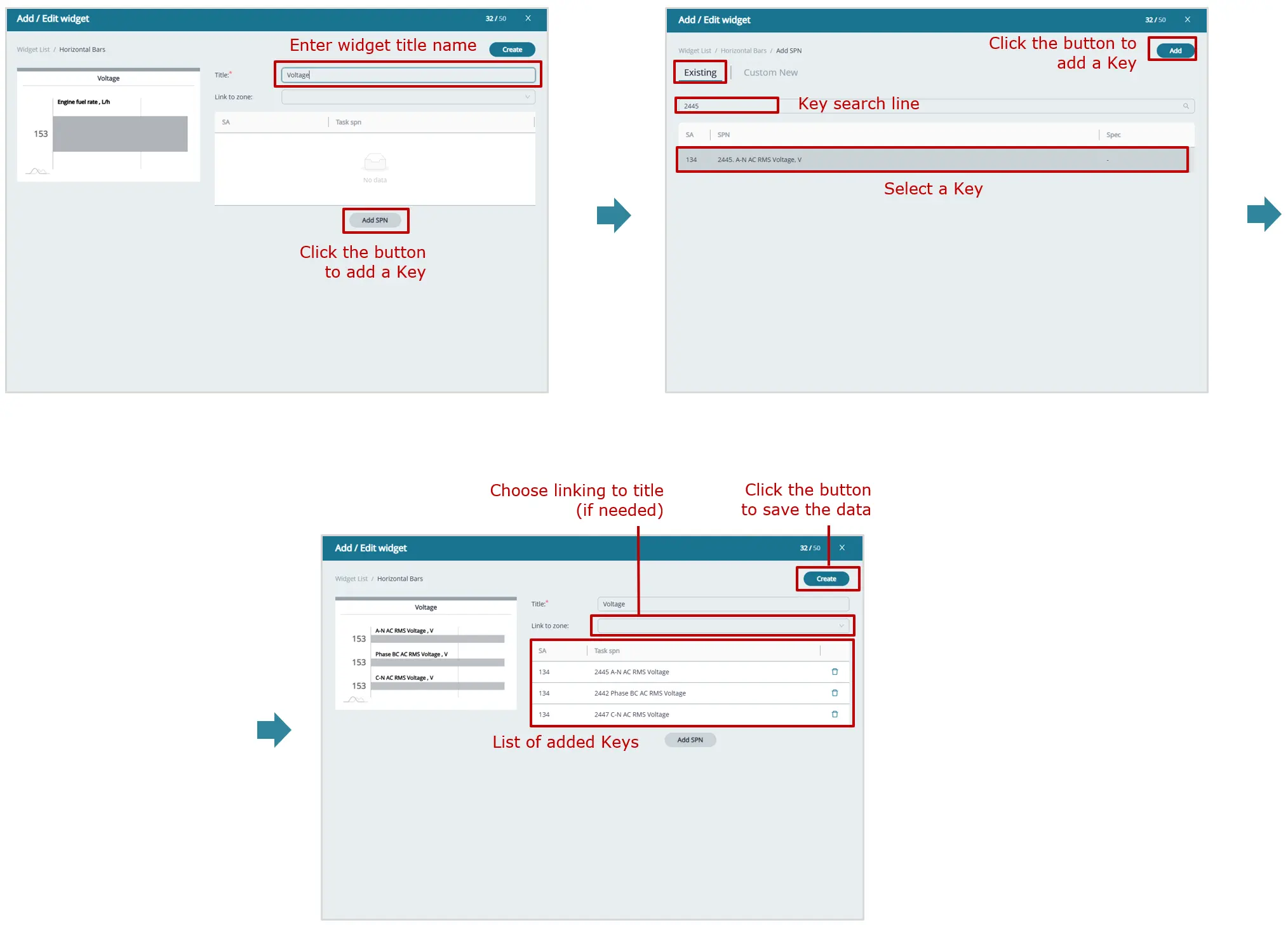
– Title* — this field is available only for widgets of the Multiple parameters set and is used to enter the title name.
In widgets with two or more Parameters, to add each new SPN to the table, click the Add SPN button. After filling in the mandatory (marked with *) and other fields in the opened Add SPN window, click the Add button to save the data.
– Variant* — this drop-down list is available only in the Table widget for Groups and is used to select the Key display variant: Value (as a decimal number with an integer and fractional part, if available) or Percentage (as a progress bar).
– Select command* — this drop-down list is available only in the Command widget and is used to select the required remote control command of the Asset. After that, depending on the selected command, it is necessary to fill in the corresponding mandatory attribute fields marked with the * symbol in the Enter the necessary data area.
– Command name* — this field is available only in the Command widget and is used to enter the name of the button for executing the Asset remote control command.
From the Link to zone drop-down list, in some widgets it is possible to select linkage to a specific header previously defined using the Zone widget. This option is convenient for grouping widgets in a Dashboard Template of a pool consisting of multiple Assets.
5) After entering all the settings for the new widget in the Add Widget window, click Create button to save the data and the widget will be added to the created Template window. If you do not want to save the entered data, click  icon in the upper right corner.
If you need to move the widget, you may draw it, by pressing and holding it with the left mouse button, to any needed location in the window. To change the widget size, you may pull  icon in its right bottom corner.
6) After you add all widgets into the new Dashboard template, (maximally 50 pcs.), press Create button, to save the data entered. If you don’t need saving the data, press  icon.
icon.
|
ATTENTION: 1) By clicking  button in the field of any default Dashboard template in the tab of any Task, you can create a full copy (duplicate) for further editing and for creating new Templates based on it. The copied Template is automatically added to the list of Templates for the relevant Task under the original name with the prefix (duplicate). button in the field of any default Dashboard template in the tab of any Task, you can create a full copy (duplicate) for further editing and for creating new Templates based on it. The copied Template is automatically added to the list of Templates for the relevant Task under the original name with the prefix (duplicate).2) The created Dashboard template can be exported as a file (*.tunum) by clicking  icon; the file will be saved on your computer. Later, this file can be imported by other users or used as a basis for creating other Dashboard templates by clicking icon; the file will be saved on your computer. Later, this file can be imported by other users or used as a basis for creating other Dashboard templates by clicking  icon. icon. |

a) preliminary operations

widget sets selected for monitoring a single Asset

example of adding a Key from the default preset Key list to a gauge widget

example of adding a custom Key to a gauge widget
example of adding a custom Key to a text message widget
example of adding multiple Keys from the default preset Key list to a progress bar widget

example of adding multiple custom Keys to an icon widget

example of header zone highlighting widget settings

example of Asset electronic passport widget settings

example of creating a widget for displaying the list of states and operating modes of an Asset

example of creating a widget for displaying functional state flags and alarms of an Asset

saving a Dashboard Template created for a single Asset
b) creating a Dashboard Template for a single Asset

widget sets selected for monitoring a Group

example of adding custom Keys to a table widget for Group monitoring

saving a Dashboard Template created for a Group
c) creating a Dashboard Template for a Group

widget set selected in Dashboard Templates for Geofence Tasks

saving a Dashboard Template
d) example of creating a Dashboard Template for a Geofence
Figure 11— Examples of creating Dashboard Templates
5.5.2 Editing a Dashboard Template #
|
WARNING: Default Dashboard templates from preset Tasks cannot be edited by Fleet users. Only the following Dashboard templates can be edited: – those created directly by the user; – those imported from a file (*.tunum); – those created from a duplicate using button. |
1) In the Main menu, open the Management tab and click the Dashboards tile to enter the Dashboard Template Management window (see Figure 11 a).
2) In the Dashboards for window that appears, select the Fleet resource tab for which the Template must be edited: Assets (for a single Asset), Groups (for a Group), or Geofences (for a Geofence). After that, Task tabs will be displayed for the selected resource, under which Dashboard Templates are grouped with the corresponding sets of Keys.
3) Click the required Dashboard Template to edit it. In the selected Template, if necessary, it is possible to change: the name (Name* field), the target Fleet resources (in the For assets drop-down list for an Asset or For groups for a Group), as well as add new widgets and edit or delete previously created widgets (see Figure 12).
To open the Add / Edit widget widget settings window, use  icon in the upper right corner of the widget. To delete a widget, use
  icon.
icon.
When editing Multiple parameters widgets with two or more Keys, click  icon in the corresponding line to delete a Key.
To edit Key settings in a Table widget for a Group, click  button in the relevant line, after which it will change to
  button. Once editing is complete, confirm the changes by clicking button, or click
  button to the right to cancel the changes.
When editing State widget for displaying text messages, you may change the SPN threshold value, font color and size. To enable/disable displaying a message, press the respective  icon in its line.
After making changes to the widget, click Update button to confirm them.
If necessary, you may change the widget location by dragging it to another place of the window. To change the widget size, you may pull  sign in the lower right corner.
4) As soon as you finish editing the Dashboard template, press Update button in its upper right corner, to save the changes made.
If you don’t need to save the data, press  icon. In the dialog box Close without saving?, click Yes button to confirm cancellation of the changes. If you do not want to cancel, click No button.

editing widgets for a single Asset

editing widgets for a Group

editing widgets for a Geofence

cancelling widget changes
Figure 12 — Examples of editing Dashboard Templates
5.5.3 Deleting a Dashboard Template #
|
WARNING: Default Dashboard templates from preset Tasks cannot be deleted by Fleet users. Only the following Dashboard templates can be deleted: – those created directly by the user; – those imported from a file (*.tunum); – those created from a duplicate using button. |
1) In the Main menu, open the Management tab and click the Dashboards tile to enter the Dashboard Template Management window (see Figure 11 a).
2) In the Dashboards for window that appears, select the Fleet resource tab for which the Template must be deleted: Assets (for a single Asset), Groups (for a Group), or Geofences (for a Geofence). After that, Task tabs will be displayed for the selected resource, under which Dashboard Templates are grouped with the corresponding sets of Keys.
3) To delete the required Dashboard Template, click  icon in the corresponding field (see Figure 13).
4) In the dialog window that appears to confirm deletion of the Template, click the Yes, delete it! button. If deletion is not required, click the No button.
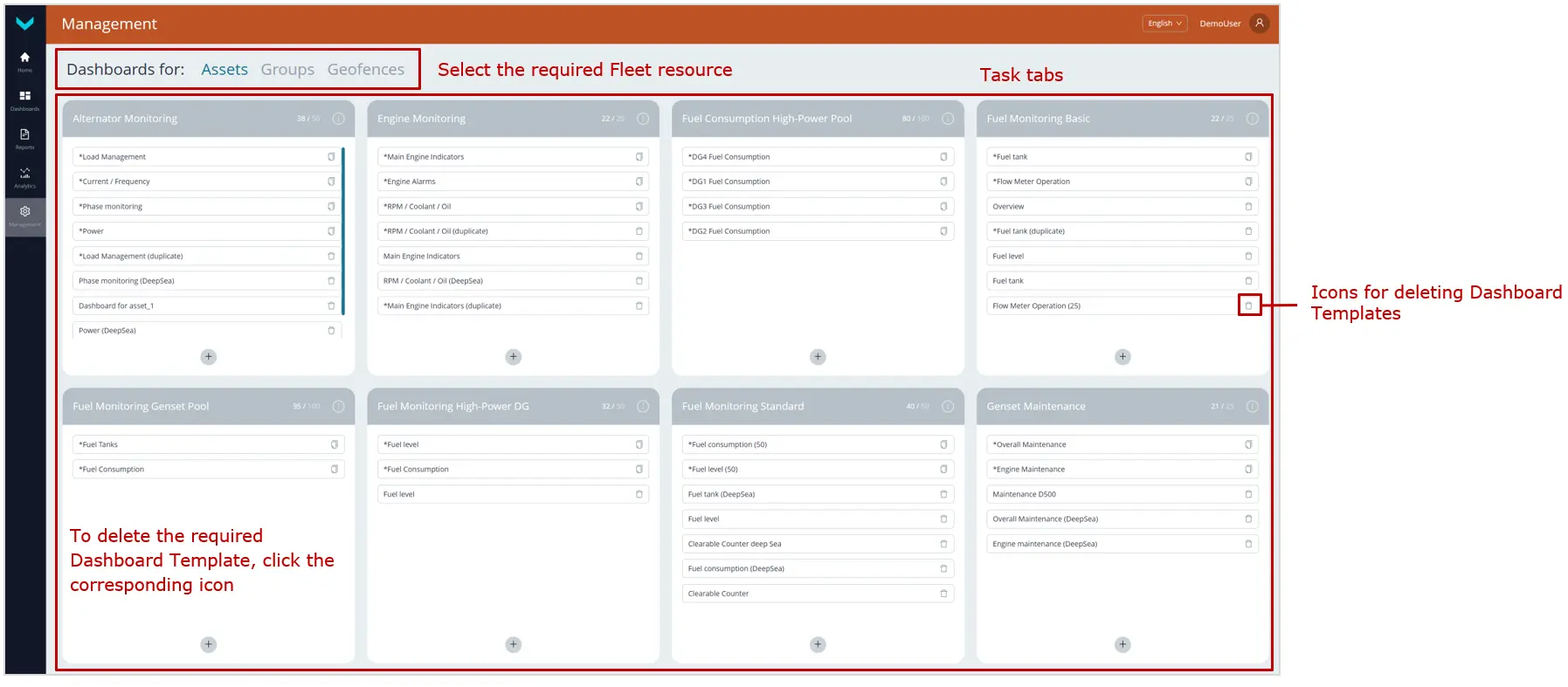

Figure 13 — Example of deleting a Dashboard Template
|
WARNING: You should take note that a deleted Dashboard template cannot be restored. To prevent its loss, we recommend, using icon, export the created Template into the file (*.tunum) which is saved in the PC memory. |
5.6 Report Template Management #
5.6.1 Creating a Report Template #
1) In the Main menu, open the Management tab and click the Reports tile to enter the Report Template Management window (see Figure 14).
2) In the Reports for window that appears, select the Fleet resource tab for which the Template must be created: Assets (for a single Asset), Groups (for a Group), or Geofences (for a Geofence). After that, Task tabs will be displayed for the selected resource, under which Report Templates are grouped with the corresponding sets of Keys.
3) To create a new Report Template, click icon at the bottom of the tab of the corresponding Task and, from the panel that appears, select the pictogram of the required data set:
 – a set of Keys selected from the default preset Key list for the relevant Task and Asset / Group / Geofence. It is also possible to select custom Keys from the standard SPNs in the S6 Database or from VSPNs (within the available number of free Keys).
 – a preconfigured set of On-board equipment faults standardly received from the Asset.
 – loading from the computer memory of a previously created Report Template file (*.runum) for an Asset / Group / Geofence in order to create a new Template based on it.
4) In the opened Report Template Management window, enter the name of the Template being created in the mandatory Name* field. Then, in the corresponding drop-down lists For assets (for an Asset), Applied to Groups (for a Group), or Applied to Geofences (for a Geofence), specify the names of the target Fleet resources (Assets, Groups, Geofences respectively) for the Post-analysis of which this Template can be used after it is created.
|
IMPORTANT: A Report Template may contain: capital letters and lower-case Latin letters from A to Z and from a to z, digits from 0 to 9, the underscore character _ and round brackets (). |
5) To populate the widgets of the Report template with Keys, click tile and then click icon at the top of the window that appears to add an appropriate widget to the Template.
icon appears below each newly added widget in the Template and can be used to add additional widgets.
Widgets for a single Asset:
 – list of Asset performance indicators.
 – Asset performance indicator charts (up to 3).
 – Asset performance indicator table.
 – header zone highlighting with a special color and label.
 – trip Map of the mobile Asset.
 – maintenance information for Asset Nodes.
 – remote control commands for the Asset.
 – list of registered Events in the operation of an Asset.
 – list of states and operating modes of an Asset (Unit).
 – list of functional state flags and alarms of an Asset (Unit).
Widgets for a Group:
 – list of main performance indicators for each Asset in the Group, including summary data for the entire Group.
 – list of registered Events for each Asset in the Group.
 – detailed Group performance information, with comprehensive indicator display for each Asset and summary data for the Group as a whole.
 – information on a registered Event, showing its attributes for each Asset in the Group.
 – list of registered Events for each Asset in the Group without data aggregation.
- – header zone highlighting with a special color and label.
Widgets for a Geofence:
 – statistical information on Asset entry/exit Events and the number of Assets in the Geofence.
 – list of Asset entry/exit Events with indication of the registration time and display of Asset markers on the Map.
 – list of registered Asset entry/exit Events with indication of the time spent in the Geofence, without displaying Asset markers on the Map.
 – highlighting of a header zone with a special color and label.
6) To add a Key to a widget, click the Add parameter icon in the area of the relevant widget.
For Keys containing a Parameter or a Counter, there are two options available in the Add parameter settings window:
- In Existing tab — Keys are added from the list of default preset Keys for the relevant Task.
- In Custom New tab — custom Keys can be created and added within the available number of free Keys for the relevant Task.
If you need to add a title, choose the widget  and click the appropriate
  Edit title icon on the right.
While adding data into the widget, you are to fill in all obligatory fields marked with (*) character:
– SA* — enter the network address of the Unit that is the source of the added Key (see Annex A).
For data received from the control panel via the Modbus RTU protocol, enter network address 134.
The network address of the source of any Key for Group Report Templates is always 1000, regardless of the network addresses of the sources of similar Keys for individual Assets within the Group.
|
RECOMMENDATION: Specific data on all Units the Asset is equipped with and their network addresses may be obtained in Technoton technical support by e-mail support@jv-technoton.com. |
– SPN* — select the required standard SPN of the S6 Database or a VSPN from the drop-down list of Parameters / Counters available according to the Task.
For the State List and Alarm List widgets, it is required to select a Transport SPN configured in the FM Report Generator of the used CANUp 27 Genset telematics gateway (see the Catalog of Functional Modules of the CANUp 27 telematics gateway). To configure data transmission via a Transport SPN, it is additionally necessary to specify its bit length (Len, bit* field) and indicate the bit position (Position, bit* field).
If it is necessary to specify the value of the selected SPN, select an appropriate specifier from the Spec drop-down list.
– Unit* — this drop-down list is available only for the State List and Alarm List widgets and is used to select the Unit that is the source of Asset status data. The selection is made from the list of equipment synchronized with the S6 Database.
– State* — this drop-down list is available only for the State List and Alarm List widgets and is used to select the Unit operating mode (Unit mode) or the Unit operational status (Unit operation status).
– Map list* — this drop-down list is available only for the Alarm List widget and is used to select the required information display option: Function flags or Alarm bits.
– SPN Event* — select the required Event SPN from the drop-down list of Events available according to the Task.
When adding an Event SPN to the Event Statistics and Event Info widgets of Group Report Templates, it is additionally necessary to specify the corresponding Event attributes in the SPN* field.
– Asset* — a drop-down list from which, in the created Report Template, it is possible to set data aggregation for the added Key for an Asset (i.e. automatic calculation of the last, average, total / difference, maximum / minimum values, count, etc.).
In a Report Template for an Asset, it is allowed to add Keys without data aggregation.
– Group* — a drop-down list from which, in the created Report Template, it is possible to set data aggregation for the added Key for a Group (i.e. automatic calculation of the last, average, total / difference, maximum / minimum values, count, etc.).
For Keys added to a Group Report Template, data aggregation is mandatory.
– Title* — this field is available only for the Title widget and is used to enter the title name.
– Color* — this field is available only for the Title widget and is used to assign the background color of the title.
7) After filling in the mandatory widget fields in the Add parameter window, click the Add button to save the data, after which the Key will be added to the Report Template.
In the Title widget, after configuring the title, click the Update button in the Edit title window, after which the title will be added to the Report Template.
If you need to remove a widget added to the Report Template, click  icon in the relevant area.
8) After you add all widgets and titles into the new Report Template, press Create button, to save the data entered. If you don’t need saving the data, press  icon.
icon.
|
ATTENTION: 1) By clicking button in the field of any default Report Template in the tab of any Task, you can create a full copy (duplicate) for further editing and for creating new Templates based on it. The copied Template is automatically added to the list of Templates for the relevant Task under the original name with the prefix (duplicate).2) The created Report template can be exported as a file (*.runum) by clicking icon; the file will be saved on your computer. Later, this file can be imported by other users or used as a basis for creating other Report Templates by clicking icon. |

a) preliminary operations


example of adding a Key from the default preset Key list to a widget

example of adding a custom Key to a widget

example of widget settings for header formatting

example of settings for the Asset state list widget

saving the created Report Template
b) creating a Report Template for a single Asset


example of adding a Key from the default preset list to a widget

example of adding a custom Key to a widget

example of adding data to a registered Events list widget

example of adding data to a registered Event widget

saving the created Report Template
c) creating a Report Template for a Group

d) creating a Report Template for a Geofence
Figure 14 — Example of creating a Report Template
5.6.2 Editing a Report Template #
|
WARNING: Default Report templates from preset Tasks cannot be edited by Fleet users. Only the following Report templates can be edited: – those created directly by the user; – those imported from a file (*.runum); – those created from a duplicate using button. |
1) Open Management tab in the Main menu and press Reports tile, to enter the Report Templates Management window (see Figure 14 a).
2) In the Reports for window that appears, select the Fleet resource tab for which the Template must be edited: Assets (for a single Asset), Groups (for a Group), or Geofences (for a Geofence). After that, Task tabs will be displayed for the selected resource, under which Report Templates are grouped with the corresponding sets of Keys.
3) Click the required Report Template to edit it. In the selected Template, if necessary, it is possible to change the name (Name* field), the target Fleet resources (in the corresponding drop-down lists For assets (for an Asset), Applied to Groups (for a Group), or Applied to Geofences (for a Geofence)), add new widgets, and edit or delete previously created widgets (see Figure 15).
To add new widgets, use  icons in the middle of the Report Template window.
To add new Keys to a widget, click the Add parameter icon in the area of the relevant widget (the options and procedure for adding Keys are similar to section 5.6.1).
To edit Keys, use the corresponding icons in the widgets. After making changes to the Key data in the Update parameter window, click Update button to confirm them.
To edit the Title widget, click the corresponding Edit title icon on the right. After making the changes, click the Update button to confirm them.
To delete a widget, click icon in the relevant area.
To delete Keys, use the corresponding  icons in the widgets.
4) As soon as you complete editing the Report Template, press Update button in the upper right corner, to save the changes made.
If you don’t need to save the data, press icon. In the dialog box Close without saving?, click Yes button to confirm cancellation of the changes. If cancellation is not required, click No button.

example of editing Key data in a widget for a Key added from the default preset Key list

example of editing custom Key data in a widget

saving data entered

widget changes cancellation
Figure 15 — Example of editing a Report Template
5.6.3 Deleting a Report Template #
|
WARNING: Default Report Templates from preset Tasks cannot be deleted by Fleet users. Only the following Report Templates can be deleted: – those created directly by the user; – those imported from a file (*.runum); – those created from a duplicate using button. |
1) Open Management tab in the Main menu and press Reports tile, to enter the Report Templates Management window (see Figure 14 a).
2) In the Reports for window that appears, select the Fleet resource tab for which the Template must be deleted: Assets (for a single Asset), Groups (for a Group), or Geofences (for a Geofence). After that, Task tabs will be displayed for the selected resource, under which Report Templates are grouped with the corresponding sets of Keys.
3) To delete the required Report Template, click  icon in the corresponding field (see Figure 16).
4) In the dialog window that appears to confirm deletion of the Template, click Yes, delete it!. If deletion is not required, click the No button.

Figure 16 — Example of deleting a Report Template
|
WARNING: You should take note that a deleted Report Template cannot be restored. To prevent its loss, we recommend, using icon, to export the created Template into (*.runum) file which is saved in the PC memory. |
5.7 Operational monitoring of Fleet operation #
Operational monitoring of the operation of Assets / Groups / Geofences is performed using Dashboards, on which Parameters, Counters, Events, faults, movement, and maintenance information are displayed in real time by means of widgets (gauge and digital indicators, progress bars, Graphs, tables, Map).
Dashboards for the Fleet are organized by Tasks.
|
IMPORTANT: Detailed information about the Tasks preconfigured in the Industry Solution is provided in the corresponding Task Catalog (for example, see the document UNUM Genset telematics service. Task Catalog). |
To work with Dashboards, in the Main Monitoring Window (see 5.2) perform the following steps:
1) In the Main menu, open the Home tab, or in the Dashboards tab open menu and select from the Fleet resource list the required single Asset (the Assets tab), Group (the Groups tab), or Geofence (the Geofences tab). The name of the selected Asset / Group / Geofence will be displayed on the Information panel (see Figure 17).

a) selection in Home tab

b) selection in Dashboards tab
Figure 17 — Examples of selecting an Asset for real-time performance monitoring using Dashboards
2) In the Dashboards tab, the required Dashboard Templates are selected from the corresponding Task tabs (see figure 18).
- In the Dashboards title, the standard data set is displayed: the Task, the Dashboard name, / indicators of the Asset online/offline status, of availability/absence of data on the engine/electric generator operation, of the date and time of the latest data update.
Note — In Dashboards tables for Groups, the Assets online/offline status indicators, indicators of availability/absence of data on the engine/electric generator operation are displayed in the respective lines of columns .
 - In the Dashboard data display area, when you hover the cursor over any Parameters or Counters, the following are displayed for the relevant Keys: SPN / VSPN number, name, specifier (if available), and the unique network address of the source Unit.
- In graphical widgets, when you hover the cursor over the chart, the value of the corresponding Parameter, along with the date and time, is displayed for the selected point. If necessary, you can zoom in on a specific section of the chart along the time axis by selecting it while holding down the left mouse button. To reset the zoom, click
 icon on the right side of the chart.
 - In widgets of Events, by pressing
 buttons, you may filter lists of urgent, important and information Events accordingly. The number of Events in the corresponding list is indicated on each of these buttons. The total number of all recorded Events is listed in Total field .
By clicking icon in the line of the relevant Event, you can view its attributes: the value of the Parameter for which the Event was recorded (for example, fuel volume for “Refueling”/”Draining”), and the date and time of occurrence.
 - In widgets of Onboard equipment malfunctions you may view attributes for each malfunction: date and time of occurrence, SID+FMI codes, network addresses of source Units. In
 field you may search for the required malfunction by its code. By pressing
  buttons, you may filter lists of active and saved malfunctions accordingly. The number of malfunctions in the corresponding list is indicated on each of these buttons. The total number of all recorded malfunctions is listed in Total field.
- In the maintenance widgets for Asset Nodes, each criterion displays: the maximum and current values of the corresponding resource Counter, its progress bar and current utilization percentage, and the estimated date of the Node’s scheduled maintenance.
Depending on resource utilization, the progress bar may be displayed in blue, yellow, or red, indicating normal, borderline, or maintenance-required status of the Node, respectively.
When you hover the cursor over any criterion, the following are shown: the network address of the relevant source Unit, SPN number and Counter name, unit of measurement, and the date and time of the last data update.
When any resource Counter reaches 100% utilization, its progress bar turns red, indicating that maintenance is required for the corresponding Node.
After servicing an Asset Node, click icon in the line of the relevant criterion. In the Make service window that appears, click Apply button to reset the resource Counter. The progress bar will then change to blue, and the resource utilization percentage will be set to 0%.
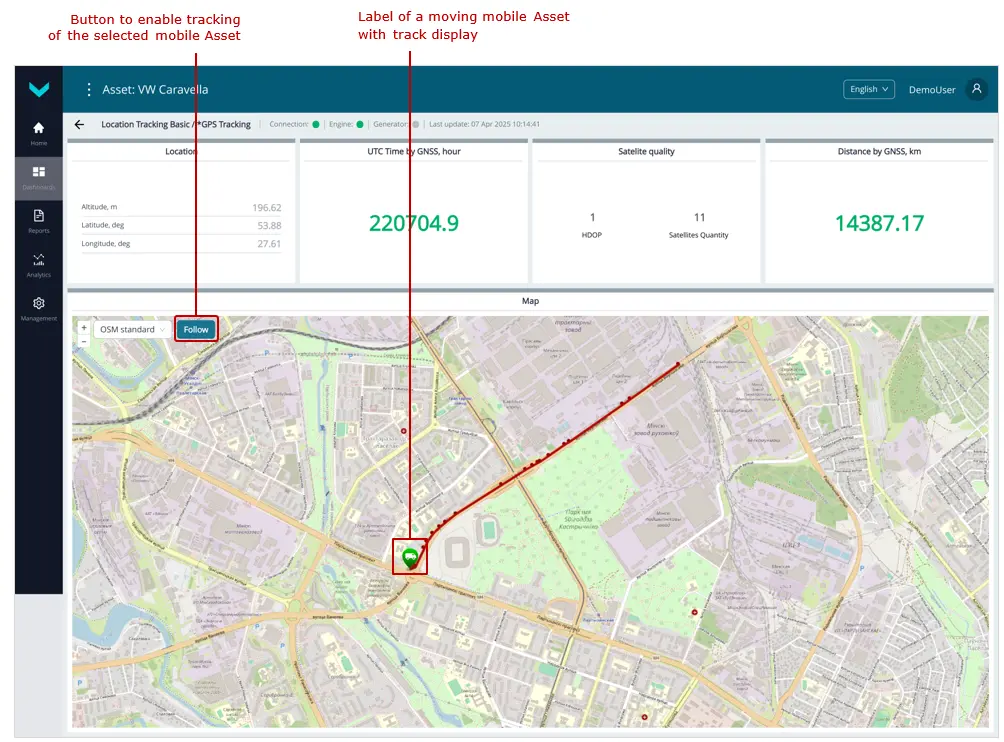
 - To track the movement of a selected mobile Asset on the Map widget, click Follow button in the upper left corner of the Map. After clicking, the button will change to Unfollow button, and the moving Asset, along with the last 10 points of its track, will always remain in the center of the Map. To stop tracking the Asset’s movement, click Unfollow button.
- A particular feature of Dashboards for monitoring Groups is data presentation only in the form of tables.
-
In Geofence Dashboards, the current location of Assets within the Geofence is displayed. By selecting the required Asset from the list, it is possible to view detailed information on its entry/exit Events, including the corresponding Geofence boundary crossing points, location coordinates, date, and time.
By clicking the In and Out buttons, you can filter the lists of Asset entry and exit Events respectively. The All button shows the total number of registered Events for the selected Asset.

a) real-time display of basic information on engine fuel consumption of an Asset

b) real-time display of detailed information on the Asset fuel tank

c) real-time display of basic fuel consumption information for a pool of four Assets

d) real-time display of detailed information on electrical parameters of the Asset genset

e) real-time display of remote control command buttons of an Asset

f) real-time display of telematics information for an Asset

g) real-time display of information on maintenance of Asset Nodes
h) real-time display of information on the location and travel route of an Asset

i) real-time display of diagnostic information for an Asset

j) real-time display of detailed information on electrical parameters of a Group of gensets
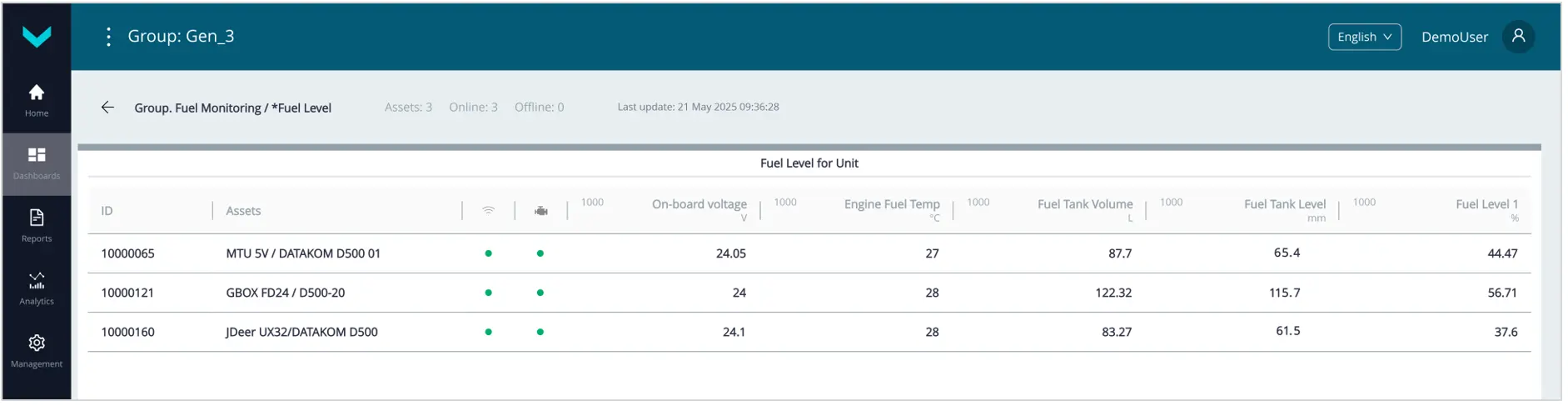
k) real-time display of information on fuel tanks of a Group

l) real-time display of information on fuel consumption of a Group

m) real-time display of information on registered Geofence Events

n) real-time display of information on operating modes, functional states, state flags, and alarms of an Asset
Figure 18 — Examples of operational monitoring of Fleet operation using Dashboards
5.8 Post-analysis of Fleet operation #
Post-analysis of Fleet operation for a specified time period is performed using:
-
Analytical reports that display Parameters, Counters, Events, and other information for Assets / Groups / Geofences.
-
Multi-Graphs (with combination of up to 3 Graphs) that display changes of selected SPN from the accumulated array of “raw” (RAW) data received from an Asset and stored on the Server.
5.8.1 Generating Analytical reports #
5.8.1 Generating Analytical reports #
Analytical reports for the Fleet are organized by Tasks.
|
IMPORTANT: Detailed information about the Tasks preconfigured in the Industry Solution is provided in the corresponding Task Catalog (for example, see the document UNUM Genset telematics service. Task Catalog). |
To work with Analytical reports, in the Main Monitoring Window (see 5.2) perform the following steps:
1) In the Main menu, open the Home tab, or in the Dashboards tab open menu and select from the Fleet resource list the required single Asset (the Assets tab), Group (the Groups tab), or Geofence (the Geofences tab). The name of the selected Asset / Group / Geofence will be displayed on the Information panel (see Figure 19).

a) selection in the Home tab
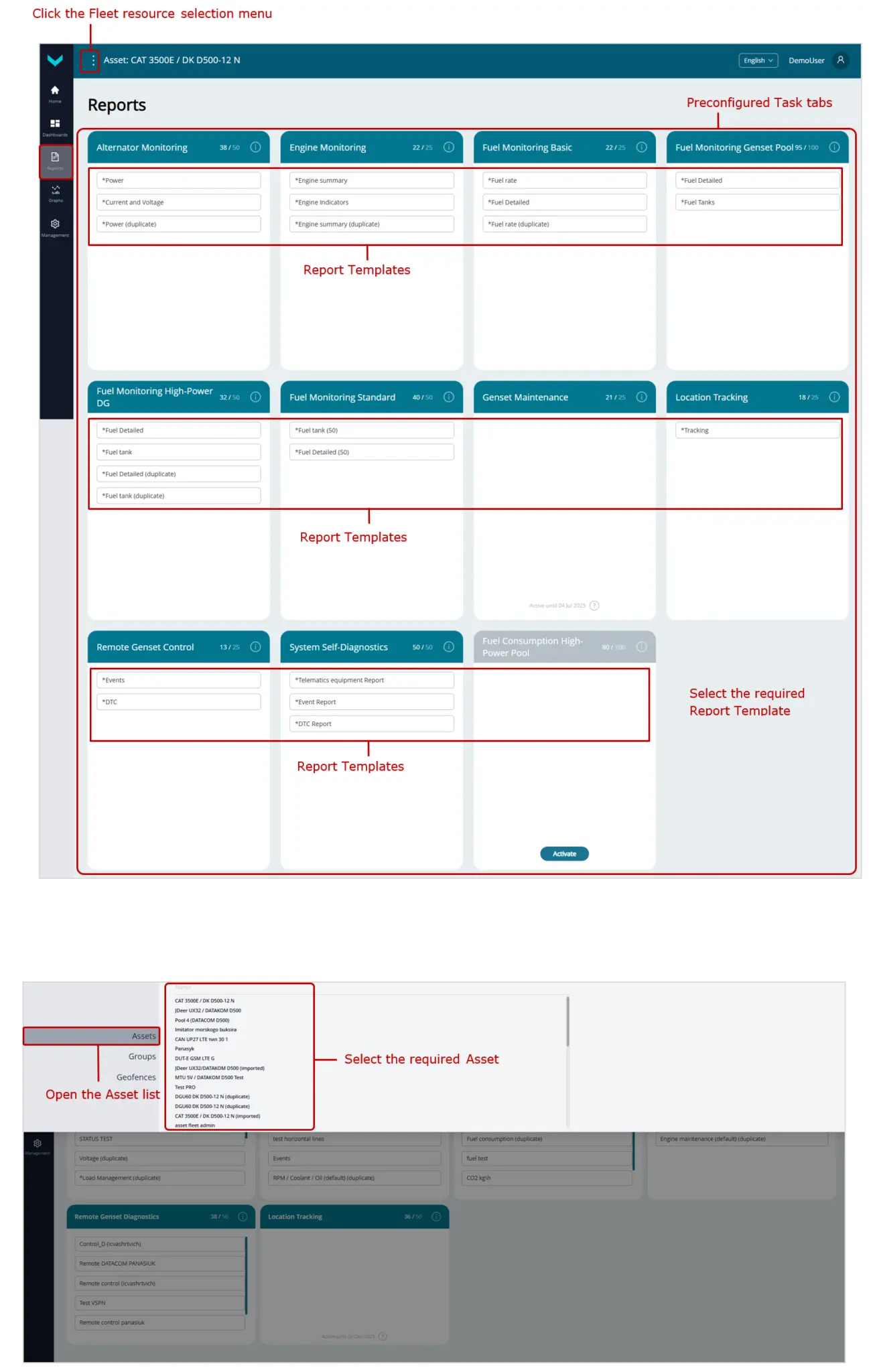
b) selection in the Reports tab
Figure 19 — Examples of selecting an Asset for analyzing its operation using Analytical reports
2) In the Reports tab, select the required Report Templates from the available Tasks. To generate an Analytical report based on the selected Template, specify the time period for which the Report must be generated (see 5.2) and click the Create report button (see Figure 20).
If it is necessary to save the generated Report to a PDF file, click the Save report button. The Report can also be saved to an XLSX file by clicking the Save as Excel button.
- In the title of each created Analytical report, a standard data set is presented: Task, Report name, Fleet resource for which it was created and the specified reporting period, date and time of its generation and user name.
- In the data display area of created Analytical reports, whenever you place the cursor on any Parameters and Counters of the relevant Keys, the following are displayed: the number, name, specifier (if available) for the respective SPN / VSPN, and the unique source Unit network address.
- For Parameters/Counters presented as charts, when you hover the cursor over any chart, the corresponding values of all indicators, as well as the date and time for the selected point, are displayed.
Legends are shown above all charts, indicating the color of the lines for the respective indicators. By clicking the name of any indicator in the legend, you can enable or disable the display of the corresponding chart.
Below each chart, there is a time axis scaling/navigation bar, where you can conveniently highlight and zoom in on the required section of the chart and move along the selected section using two handles  . You can also zoom in on the desired section of the chart by selecting it while holding down the left mouse button. To reset the applied scaling/zoom, click
  icon on the right side of the chart.
If you need, you may enable axes count from zero for the ordinate axis of the chart in Axes from 0 field.
Time intervals during which data for the corresponding Parameter / Counter were absent on the Server are highlighted by color on the Graphs of Analytical reports, and the Graphs themselves within these intervals are displayed as dashed lines.
- In Analytical Event reports, a tabular list of emergency, important, and informational Events is provided. For each Event, it is possible to view attributes such as: the Event SPN, the network address of the source Unit, the SPN of the Parameter for which the Event was recorded, and other data.
- In Analytical reports of On-board equipment faults, for each fault it is possible to view attributes such as: the date and time of occurrence, SID+FMI codes, and the network addresses of the source Units.
Using  field, you may search for the required malfunction by its code. By pressing
  buttons, you may filter lists of active and saved malfunctions accordingly. The number of malfunctions in the corresponding list is indicated on each of these buttons. The total number of all recorded malfunctions is indicated in Total field.
- In the Analytical reports for Asset Node maintenance, each criterion displays: the date of the last (shown in black) or overdue (shown in red) Node maintenance, the maximum and current values of the relevant resource Counter, the current percentage of resource utilization, and the username of the person who last reset the resource Counter.
Depending on resource utilization, the data may be displayed in black or red, indicating a normal status or one requiring immediate maintenance, respectively.
When you hover the cursor over any criterion, the following are shown: the network address of the relevant source Unit, the SPN number and Counter name, and the unit of measurement.
- In Analytical reports for trips of a mobile Asset, a list of trips for the selected period is provided. For each trip, the following are indicated: date and time, distance traveled, number of stops, and track color. Summary information for all Asset trips during the reporting period is shown at the bottom of the list.
To view the track and analyze details for a specific trip, click its line in the list. The selected trip’s track is highlighted in red on the Map, showing the start point (green marker Start) and end point (red marker Finish). When you click these points, pop-up windows appear, showing the start/end date and time, distance traveled, and number of stops. If the trip was not completed at the time the report was generated, the end point window will display the notification Trip isn’t completed.
If necessary, you can click any point on the track to view brief information about the Asset’s performance indicators at that specific point.
To display Asset stop markers on the track, check the Show stops box located above the Map. For accurate stop detection, it is recommended to enter a value of 30 seconds or more for the minimal stop duration in the Minimal stop duration, sec field.
If needed, clicking an Asset stop marker will open a pop-up window with brief information: duration of the stop, date and time, and location coordinates.
- In Geofence Analytical reports, by selecting the required Asset from the list, it is possible to view detailed information on its entry/exit Events, including the corresponding Geofence boundary crossing points, location coordinates, date, and time. By clicking the In and Out fields, you can filter the lists of Asset entry and exit Events respectively.

a) Report with detailed information on engine fuel consumption of an Asset for a period of “one month”

b) Report with information on electrical parameters of the Asset genset for a period of “one day”

c) Report with information on Asset engine operation for a period of “one day”

d) Report with information on Asset trips for a period of “one day”

e) Report with information on faults of the Asset on-board equipment for a period of “three months”

f) Report with information on Events in the operation of an Asset for a period of “one day”

g) Report with information on maintenance of Asset Nodes for a period of “one month”

h) Report with information on electrical parameters of a Group for a period of “one day”

i) Report with information on operating parameters of Group engines for a period of “one day”

j) Report with information on Group fuel consumption for a period of “one day”

k) Report with information on Geofence statistics for a period of “one month”

l) Report with information on functional states and alarms of an Asset for a period of “one day”
Figure 20 — Examples of generated Analytical reports for post-analysis of Fleet operation
5.8.2 Generating Multi-Graphs #
To work with Multi-Graphs, in the Main Monitoring Window (see 5.2) perform the following steps:
1) In the Main menu, open the Home tab, or in the Graphs tab open menu and select the required single Asset from the Fleet resource list (the Assets list). The name of the selected Asset will be displayed on the Information panel (see Figure 21).

a) selection in the Home tab

b) selection in the Graphs tab
Figure 21 — Examples of selecting an Asset for generating Multi-Graphs
2) In the Graphs tab, select the required SPN (up to 3) from the drop-down list of data accumulated by the Server from the corresponding Asset.
For convenience, search for Parameters is available directly in the drop-down list by their name, S6 Database SPN number, or the unique network address of the source Unit.
Specify the time period for which changes in the selected data must be analyzed and click the Analyze button to generate the Multi-Graph (see Figure 22).
- In the header of the generated Multi-Graph, the specified time period and a legend indicating the line colors, units of measurement, and network addresses of the source Units for the corresponding SPN are always displayed.
- When hovering the cursor over any Graph of the generated Multi-Graph, the corresponding values of all SPN, as well as the date and time, are displayed for the selected point.
- Above the Multi-Graphs, legends indicating the colors of the lines for the corresponding parameters are displayed. By clicking the name of any parameter in the legend, you can enable or disable the display of the corresponding Graph.
- Below the Multi-Graph, there is a time-axis scaling/navigation bar, in which, using two
 handles, you can conveniently select and zoom in on the required segment of the Multi-Graph and navigate within the selected segment. You can also zoom in on a required time segment by selecting it while holding the left mouse button. To reset the applied scaling/zooming, click
  icon on the right side of the Multi-Graph.
 - If necessary, by clicking the Axes from 0 label, you can enable or disable zero-based scaling for the Multi-Graph ordinate axis.
- Time intervals during which data for the Parameters / Counters selected for the Multi-Graph were absent on the Server are highlighted by color, and the Multi-Graph in these intervals is displayed as dashed lines.

a) selection of SPN

b) selection of the time period and generation of the Multi-Graph

c) generated Multi-Graph

d) application of time-axis scaling
Figure 22 — Examples of generating Multi-Graphs for analyzing changes of three Parameters over the periods “one week” and “one month”
Annex A Recommended Unit Network Addresses #
Table A.1 — Permitted network addresses of Units installed on an Object within a unified network
| Units S6 | Maximum quantity per single Asset | Permitted network addresses (SA) | |
| Type | Model | ||
| Telematics gateway | CANUp 27 | 1 | 100 |
| CAN j1939/S6 Display | MasterCAN Display 35 | 2 | 109, 110 |
| Fuel flow meters | DFM CAN /DFM D CAN | 16 | 0…240 (recommended ranges 111…118, 151…158) |
| DFM Marine CAN | |||
| Flow meters | DFM Industrial CAN | 8 | 111…118 |
| Fuel level sensors | DUT-E CAN | 16 | 91…98, 101…108 |
| DUT-E GSM | |||
| DUT-E 2Bio CAN | |||
| Data converters | MasterCAN CC | 2 | 0…250 (recommended addresses 122, 142) |
| MasterCAN C232/485 | 2 | 124, 144 | |
| MasterCAN V-Gate | 2 | 125, 145 | |
| MasterCAN CAN2RS | 1 | 135 | |
| MasterCAN RS2CAN | 1 | 134 | |
| MasterCAN P2CAN | 1 | 140 | |
| Contactless reader-converter | FMSCrocodile CCAN | 1 | 122 |
| j1939 i/o module | MasterCAN DAC15 | 2 | 126, 146 |
| MasterCAN DAC2113 | 127, 147 | ||
| Position sensor | GNOM DP CAN | 1 | 218, 82…85 |
| Wireless interface | Marker S7 Radiobox CAN | 1 | 131 |
| Signal converter | GNOM S7 Radiobox CAN | 1 | 148 |
| Signal converter | S7 Radiobox CAN | 1 | 142 |